
Where can I check my invoice history and payments history on the customer portal?
If you want to check the details of the previous billing amount, not the current billing amount, or if you want to make sure the payment is reflected properly, the way to check it on the customer portal is very simple.
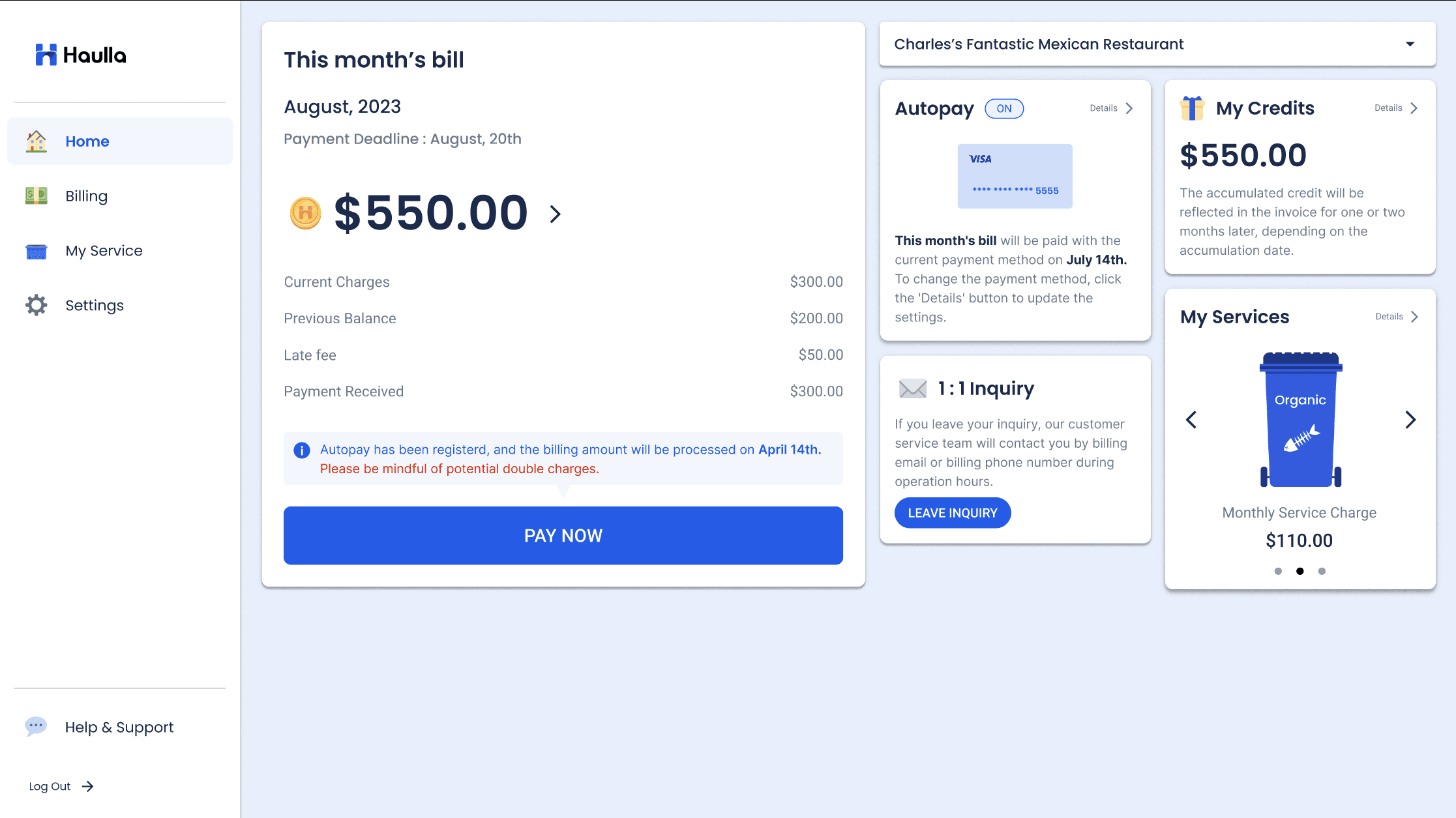
- Click the Billing menu on the left panel.
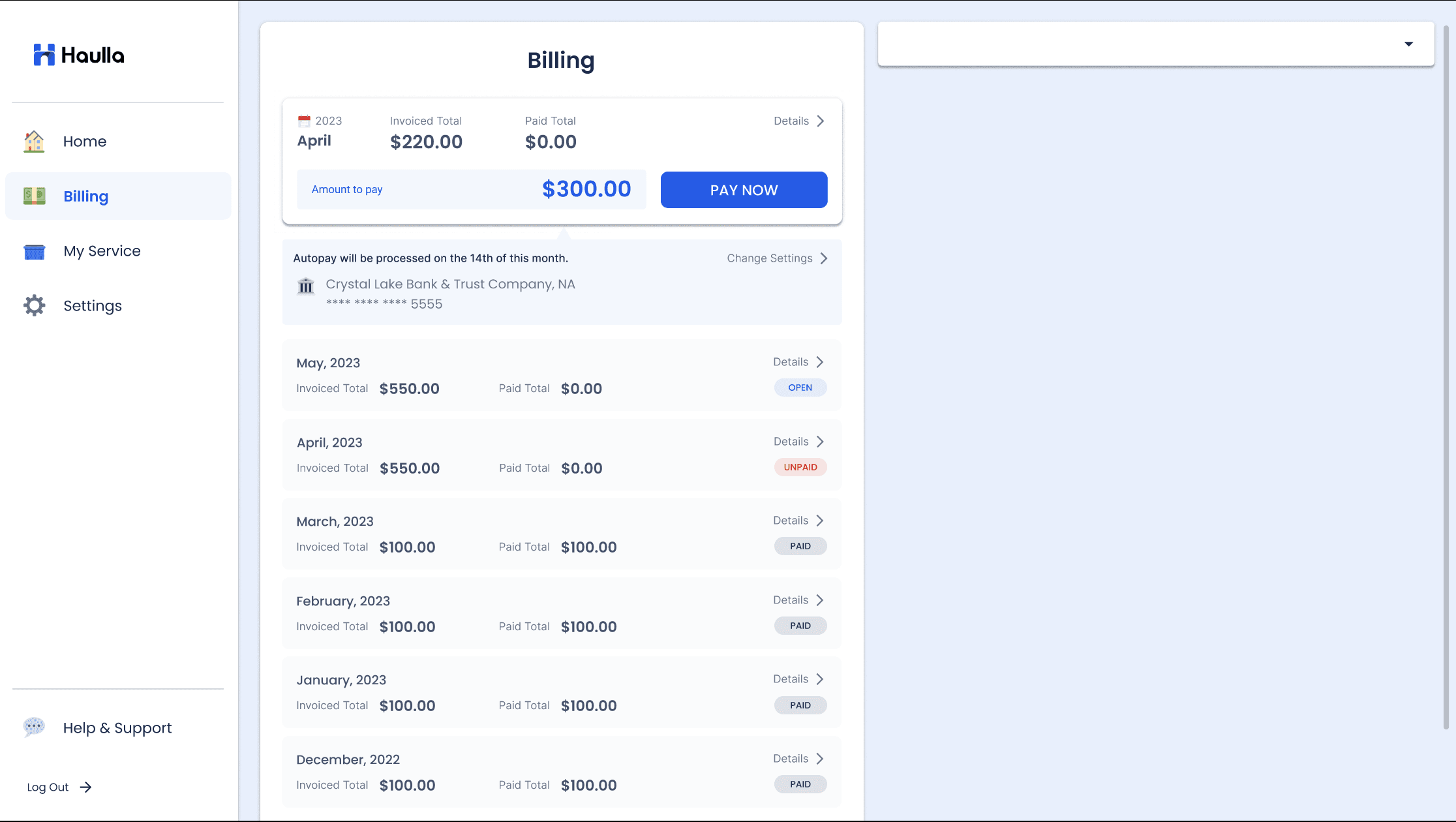
If you click the Billing button, you can select the history you want to view by selecting the tab.
- The Billing & Payments tab displays the full bill history and the payment history for the bill.
- The Credit tab displays all credit history that has been accumulated and used to date.
You will see this month's invoice at the top of the Billing & Payments screen.
- Invoiced Total shows the full amount charged for the month.
- Paid Total shows the full amount paid in the month
- Amount to Pay shows the amount due for the month.
Whether the billing is paid or overdue can be determined by the status value displayed next to it.
- Paid indicates that the amount has been fully paid, and unpaid indicates that the amount has not yet been paid.
- If the payment is paid even though the paid total is 0, the amount will probably have been included in the bill after that month.
- If you want to see the details of the billing or the details of the payment, please click the Details button.
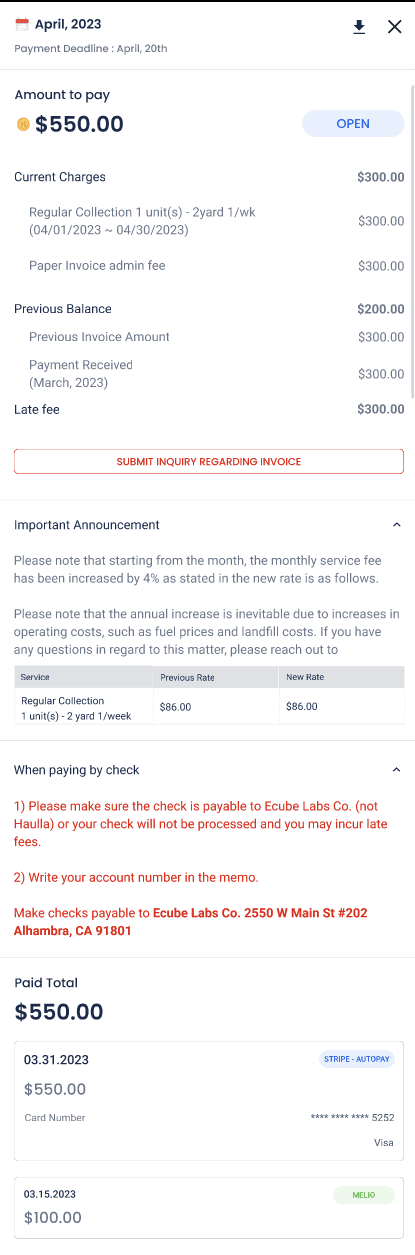
Click the Details button to get the details of your billing first.
- Current Charges shows how much you need to pay for this month.
- In the case of the first invoice issued after the service start, you may be charged a higher amount than the service rate due to the amount of Dumpster Delivery Fee and First month prorate.
- Previous Balance displays the remaining late fees in the previous month. Previous Balance is the difference between Previous Invoice Amount and Payment Received shown below.
- Previous Invoice Amount displays the amount charged in the previous month.
- Payment Received displays the amount you paid in the previous month.
- Late fee is a 5% late fee charged for overdue amounts.
The total sum of Current Charges, Previous Balance, and Late fee is displayed in the Total Amount Due.
You can check the payment details for the month by scrolling down a little more.
- The Paid total displays the total amount of money paid by the user for that month's bill.
- The date of payment received, amount paid, and method of payment are displayed below.
- There are three payment methods : Autopay and Check.
- If you paid through Autopay, the card number or bank account information that was paid will also be displayed.
- By default, payment information is displayed under the invoice for the month in which the payment was made.
Paper check is not reflected immediately after sending paper check due to mail delivery problems. It will be reflected after the check arrives, so if you wait 3-7 days, you will be able to see that the check that arrived normally is reflected in the payment history list.