
Where can I check my billing details for this month and pay for it on customer portal?
If you successfully enter the Customer Portal after logging in, you will be the first to meet the Home screen. The current Home screen displays the user's monthly billing amount.
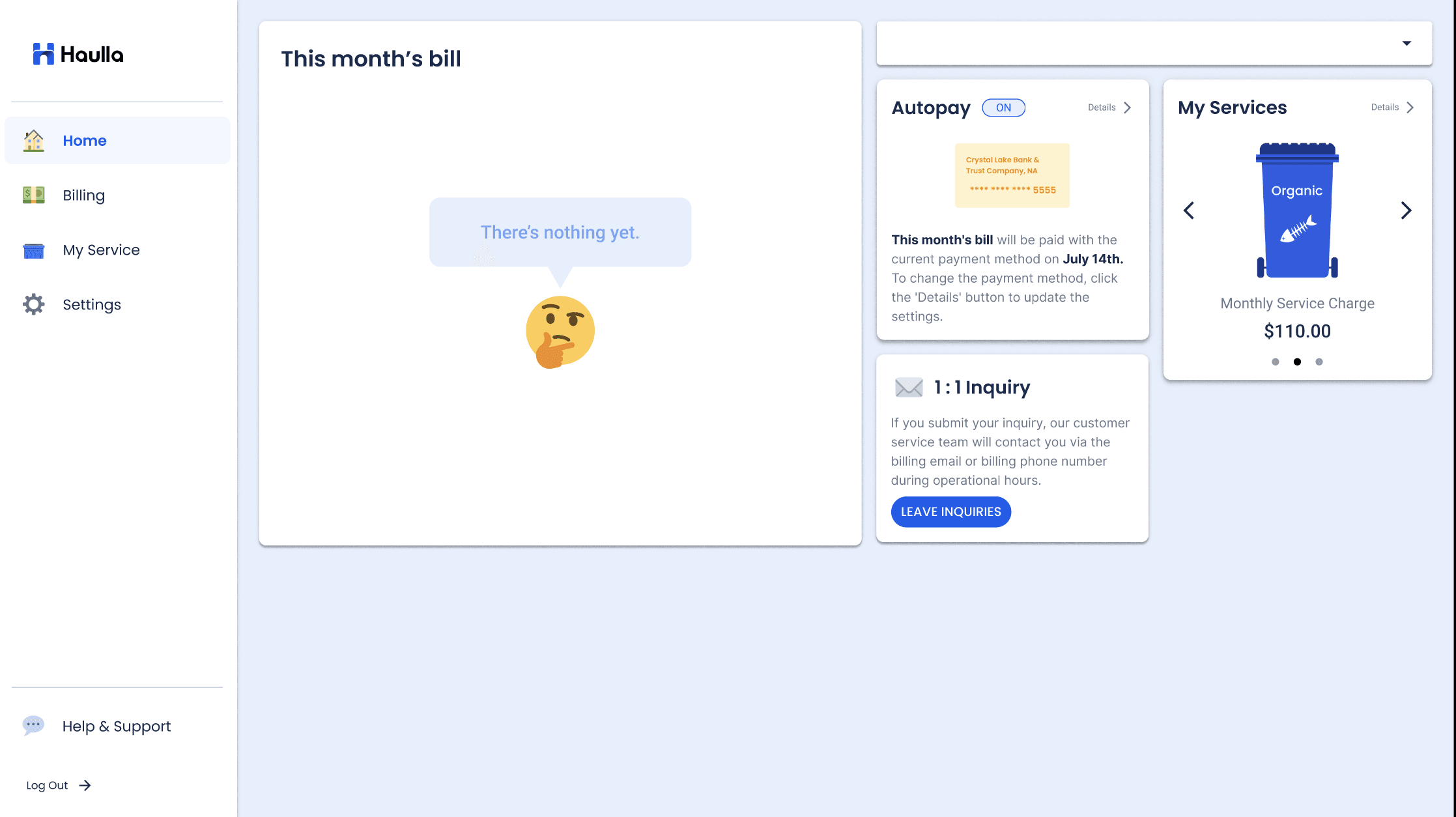
Don't worry if the home screen says nothing exists. The first billing since the start of the service begins the following month of the activate date.
- If your service starts before 20th of the month, the first invoice will be issued by the next month with prorated charges.
- If your service starts after 20th of the month, the first invoice will be issued by two months after with prorated charges.
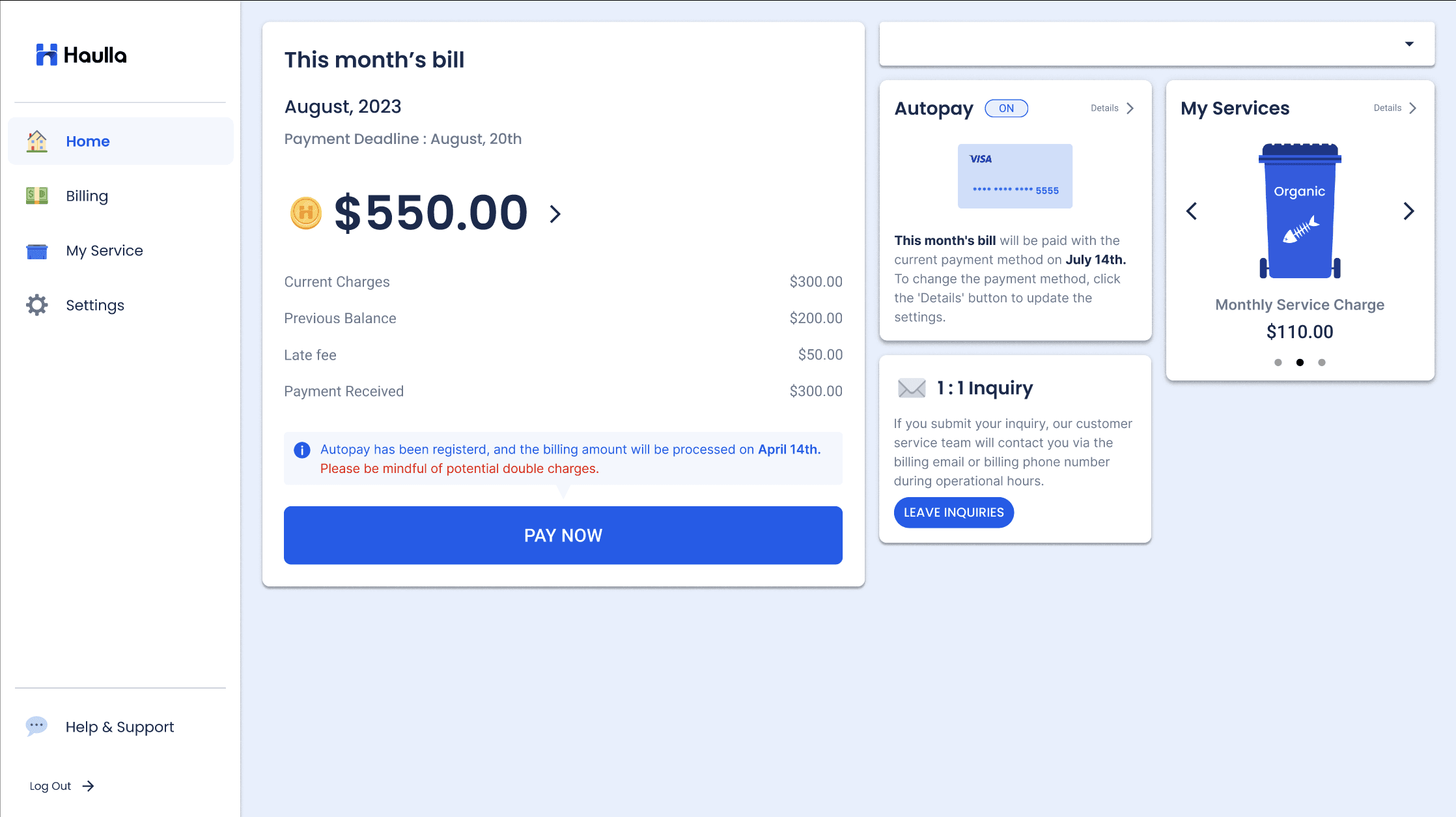
If the first billing has started since the service started, you will be able to check this month's billing detail on the Home screen every month as above.
- If you select the business you want to check in dropdown, the information displayed on that screen changes to the details related to that business.
- Due Date displays the payment due date for the corresponding billing amount. Please make sure to pay the bill within the payment deadline.
- The corresponding screen also shows whether Autopay is registered. If Autopay is registered, the button is displayed as Autopay On, otherwise Autopay Off. Click this button to go to the Setup Autopay page.
- If you want to see the details of the billed amount, you can click the > button.
- If your bill has not yet been paid, the Pay now button will be activated and displayed as clickable.
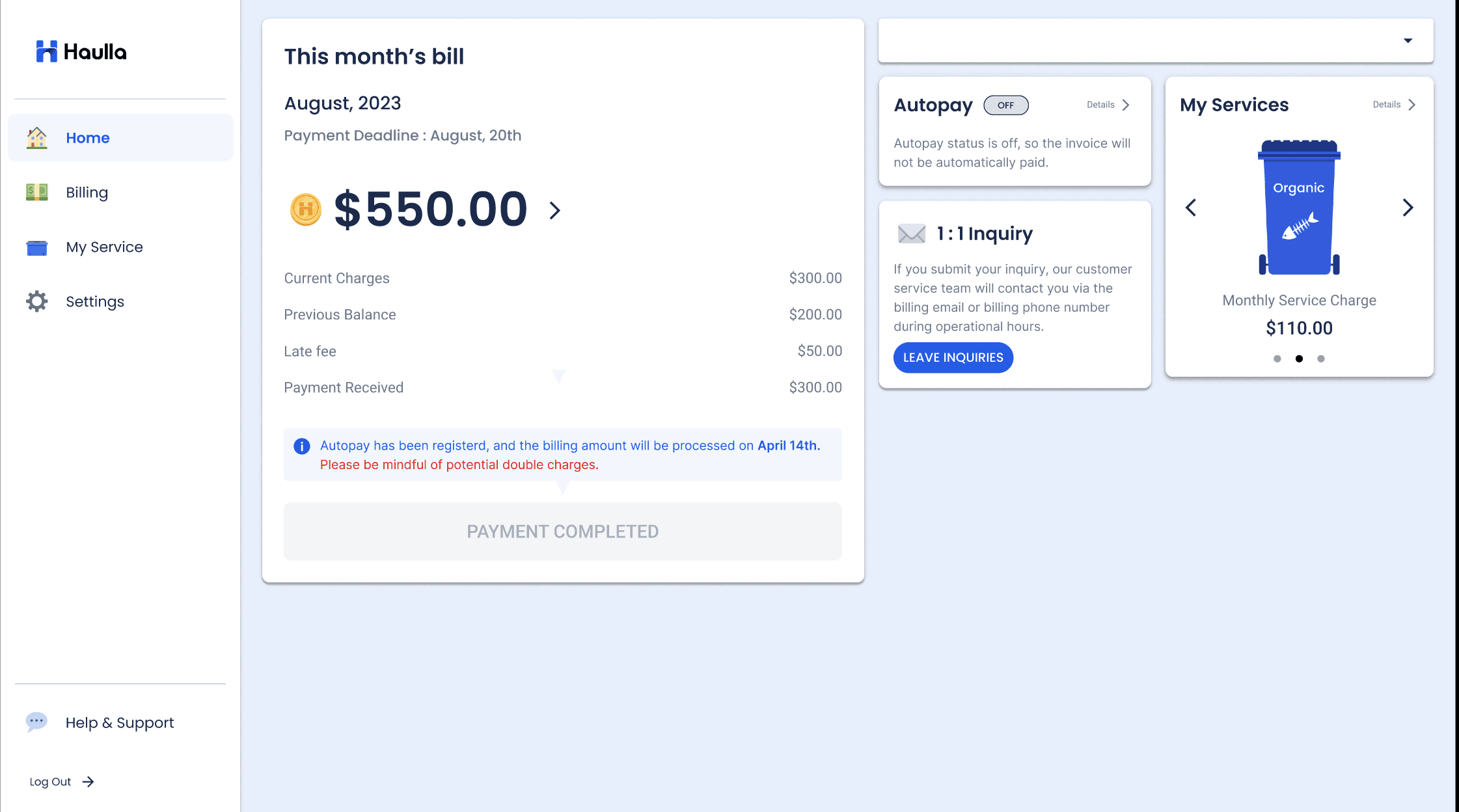
- If your bill has been paid, Payment completed button will be displayed.
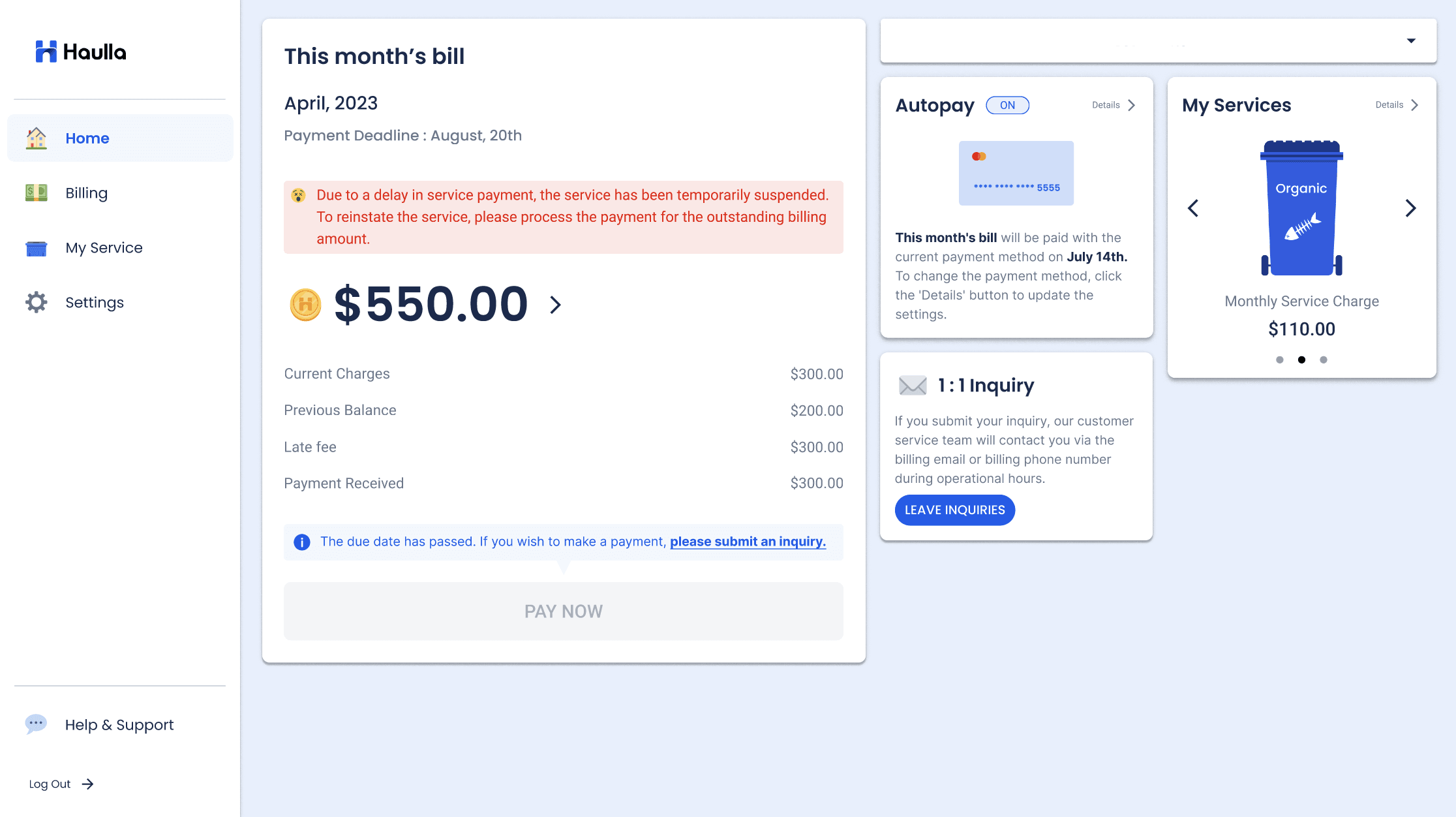
- If the payment deadline for your invoice has passed, the Pay now button will be deactivated. You have to leave an inquiry to make a payment.
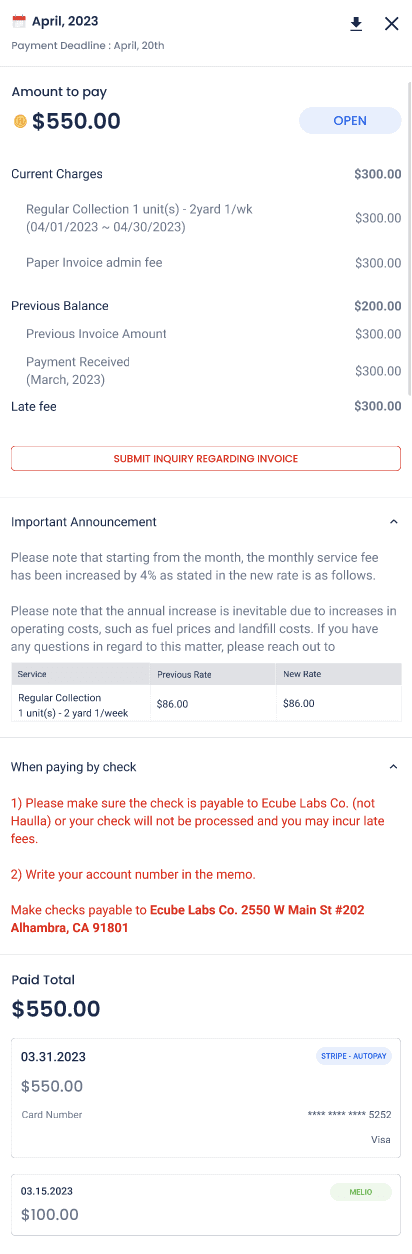
If you click > button to see the detail of this month's bill, the dialog of invoice detail will be shown.
- Current Charges shows how much you need to pay for this month.
- Previous Balance displays the remaining late fees in the previous month. Previous Balance is the difference between Previous Invoice Amount and Payment Received shown below.
- Previous Invoice Amount displays the amount charged in the previous month.
- Payment Received displays the amount you paid in the previous month.
- Late fee is a 5% late fee charged for overdue amounts.
- The total sum of Current Charges, Previous Balance, and Late fee is displayed in the Total Amount Due.
- If you would like to leave an inquiry to the amount indicated, please press the Leave inquiry about invoice button