
What functionality does the landing page of the customer portal provide?
The Home screen of the Customer Portal is being updated to display the information that the user wants in the form of a dashboard.
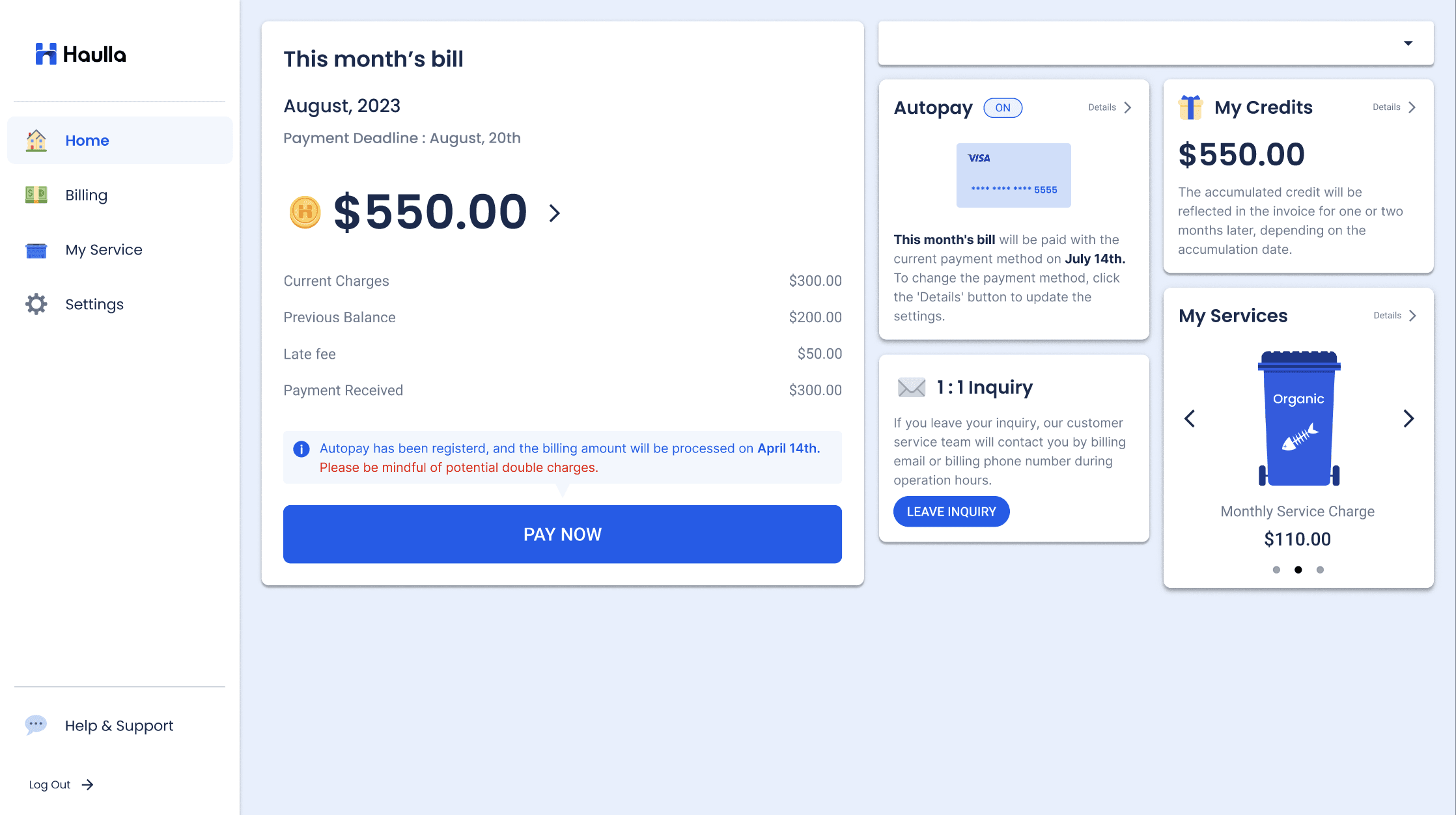
If you have contracted with haulla for multiple businesses, the button which shows your business name on the right allows you to select the business you want to view information about.
Currently, there are five features that the Home screen (the landing page) of the customer portal provides.
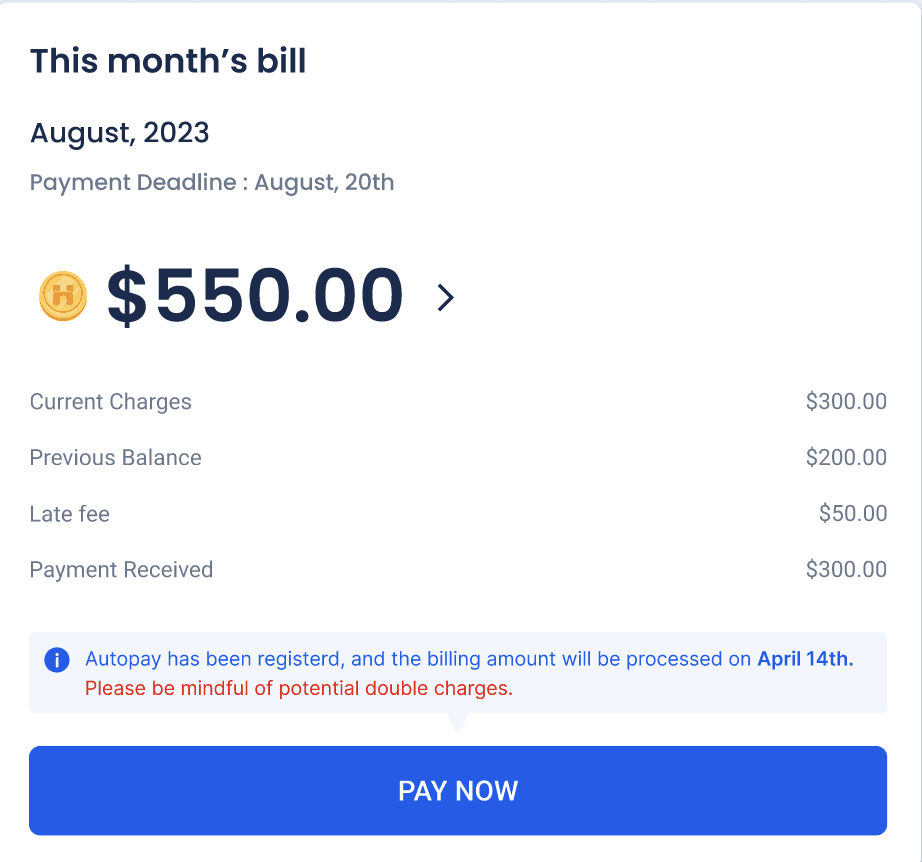
(1) This month's bill
On the home screen, you can check the invoice for this month.
You can check the payment deadline for this month's invoice.
- Payment deadline for invoice before modification is 20th of every month
- Payment deadline for revised invoice is 25th of every month
You can check your this month's total billing amount and brief details.
- Current Charges shows how much you need to pay for this month.
- Previous Balance displays the remaining late fees in the previous month.
- Late fee is a 5% late fee charged for overdue amounts.
- Payment Received displays the amount you paid in this month.
You can pay the monthly bill through Stripe by pressing Pay now button.
- For bills already paid, the Already paid button will be displayed instead of the Pay now button.
- Already Paid button will also be displayed if the current month's bill is less than or equal to zero.
- If Pay now button is unable to click, it means that the invoice due date had already passed.
- There will be a notification on the top of Pay now button which let you to leave an inquiry if you wish to make a payment after the payment has expired.
- If you press the Please leave an inquiry text of it, a new window will display the Hubspot form where user can leave a payment inquiry.
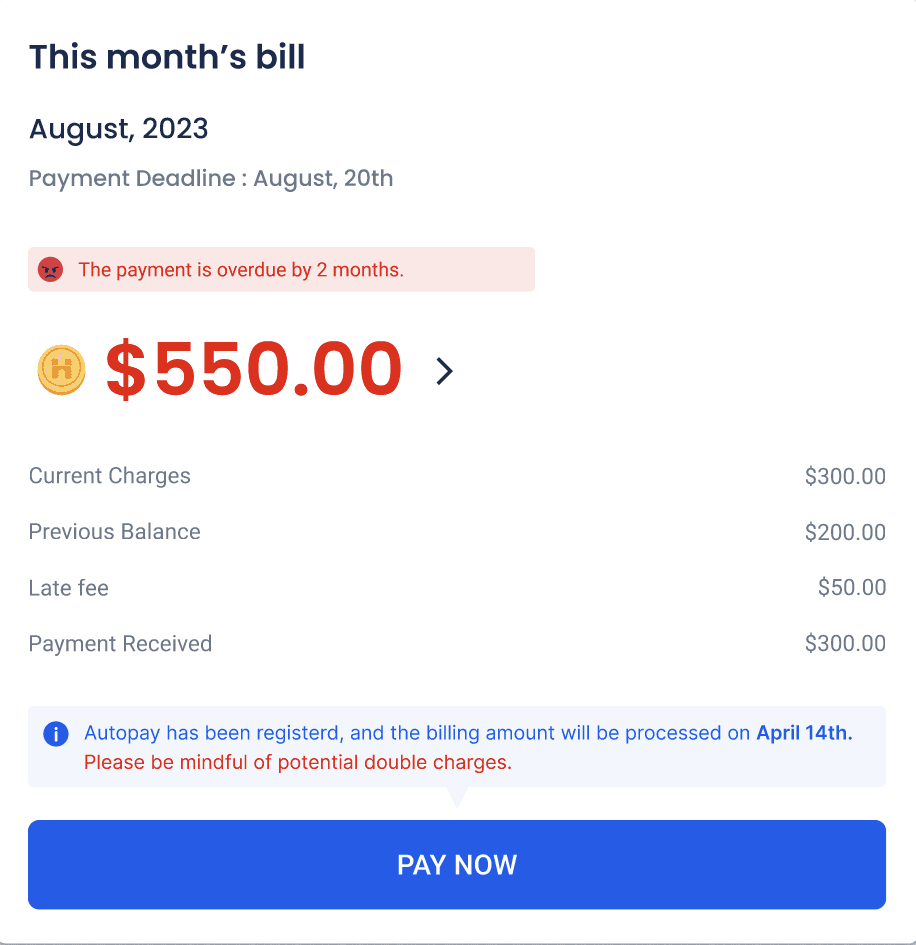
There will be a notification if you have an outstanding balance.
- Short Overdue notification will be displayed if there is an outstanding amount in the previous month.
- Long Overdue notification will be displayed if there is an amount that has not been paid in the previous month and two months ago.
- Suspend notification will be displayed if your account had been suspended.
(2) Autopay
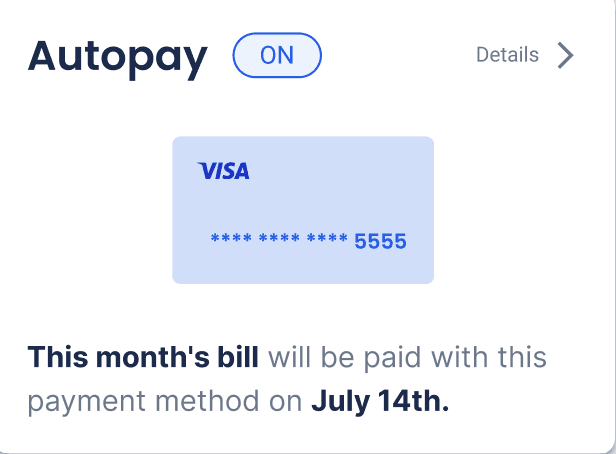
You can check your autopay status from Home screen.
- If automatic payment is registered with the business, this container will be displayed. You can also check the last 4 digits of the registered payment information.
- If you click Details button, you can move on to the Set up autopay screen where you can register the autopay.
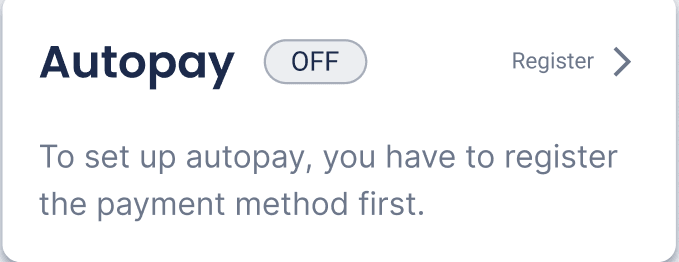
- If there is no automatic payment linked to the business, this container will be displayed. Automatic payment can only be registered after registering payment information.
- If you click Register button, you can move on to the Set up autopay screen where you can register the new payment method
(3) Leave Inquiry
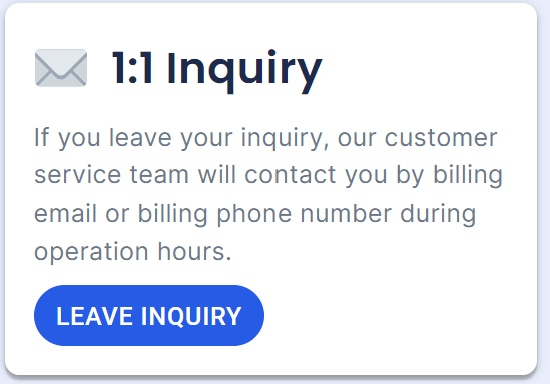
You can leave inquiry directly to Haulla from Home screen.
- Click the Leave inquiry button on the 1:1 Inquiry container.
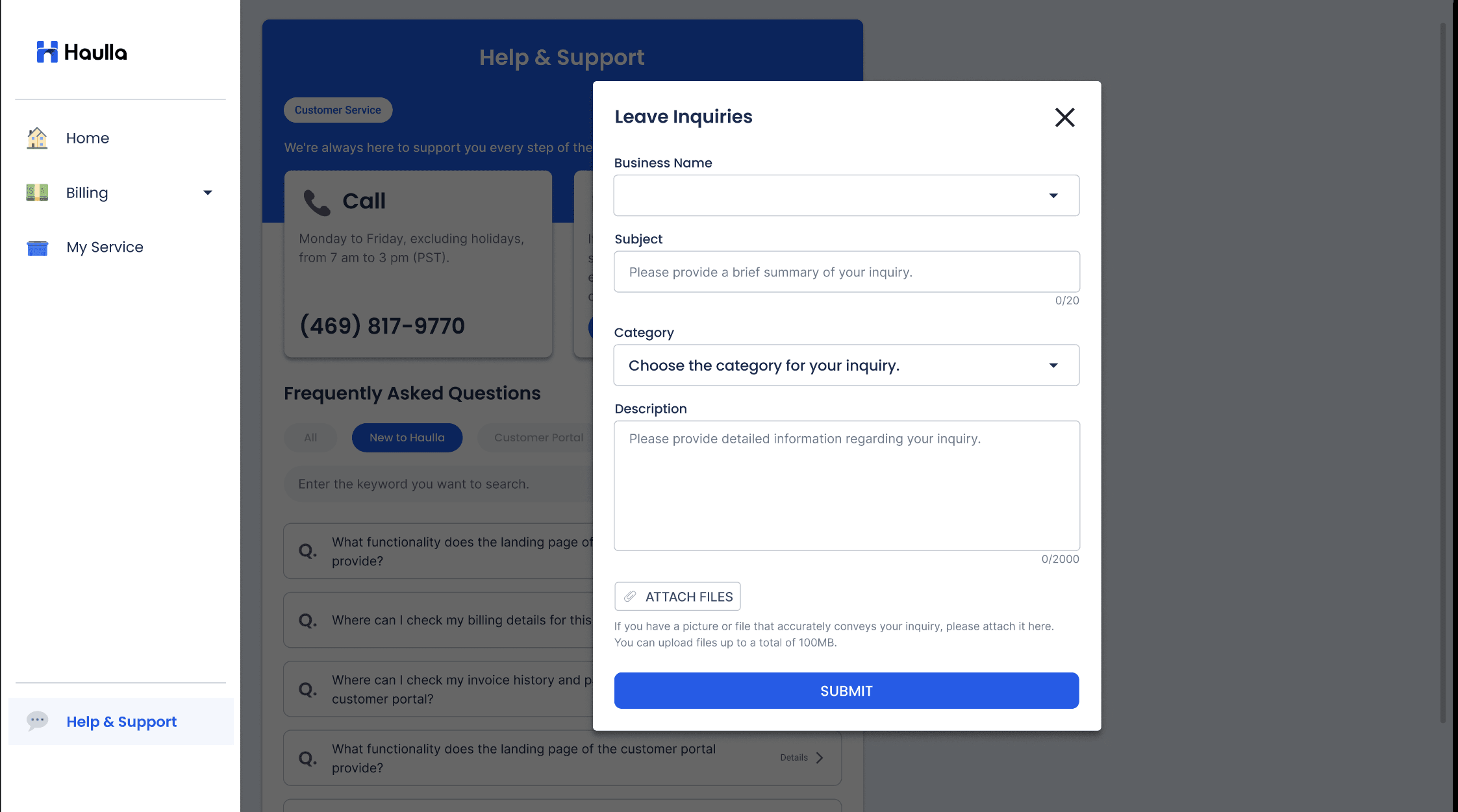
- You can select the business you want to leave an inquiry for.
- You can write a title for a inquiry in the Subject. The title of the inquiry can be up to 100 characters.
- In the Description, you can write a detail for inquiry. Description can be written up to 2000 characters.
- Subject and Description are mandatory, and the Submit button will not be activated unless you enter all of the prerequisites.
- You can choose a category for your inquiry : Billing & Payments, Dumpster, Pick up & Services, Others
- Attaching a file is possible regardless of the extension. If the total number of files you want to attach is more than 100MB, the file is not registered and an error message is displayed.
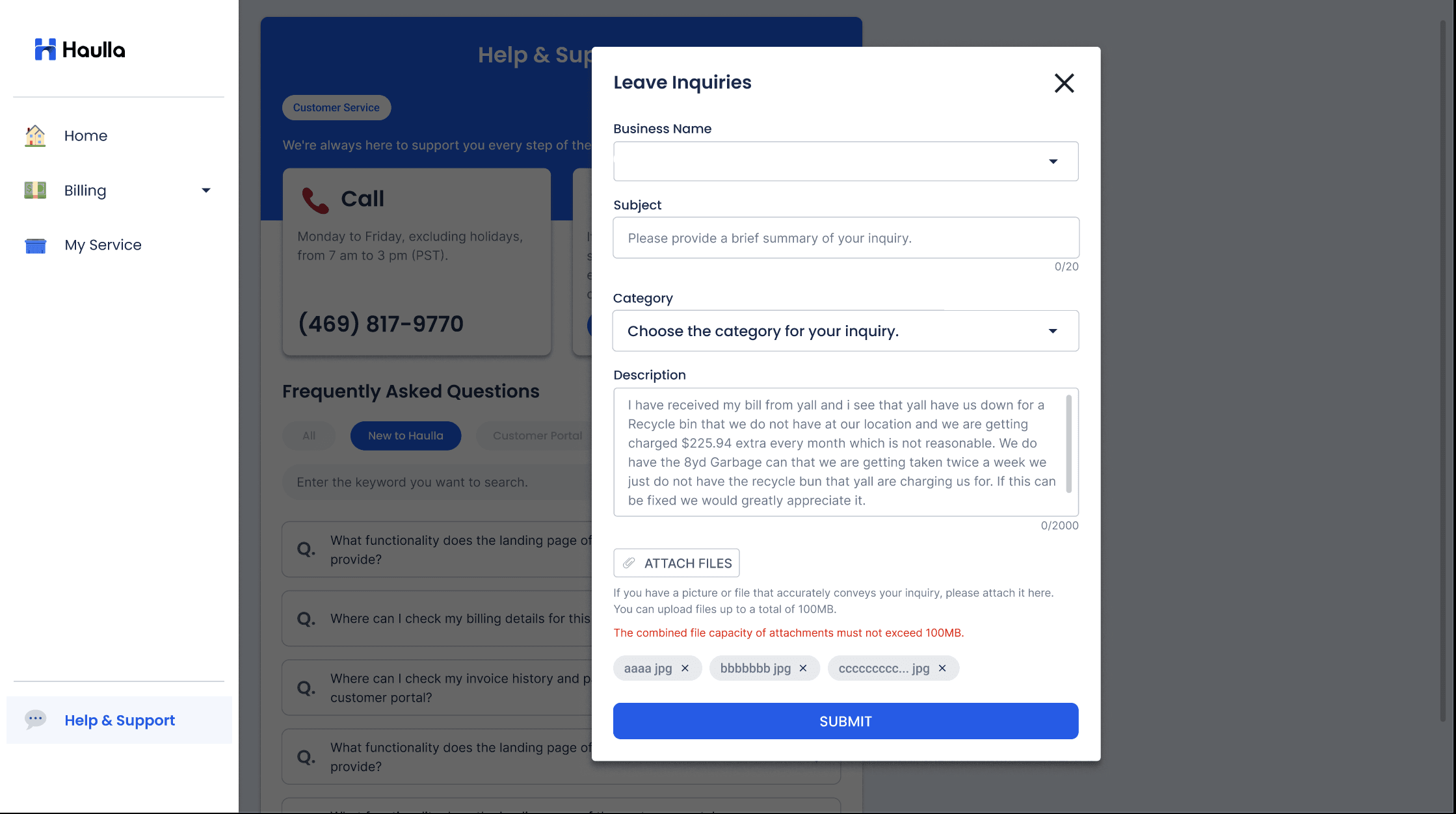
- You can attach multiple files at a time, but if the total number of those files is more than 100MB, the entire file will not be registered.
- If you attempt additional attach, if the file you want to register is more than 100MB, the existing registered files will be retained and only those that attempt to register will not be registered.
- If the file is successfully registered, the file name and extension name of the file are displayed.
- You can delete a registered file by clicking the X icon next to the attached file.
- When you press the Submit button, you will see a toast pop-up stating that your inquiry has been successfully registered
After you leave inquiry, Haulla's CS team will contact you within 24 hours.
(4) My credits
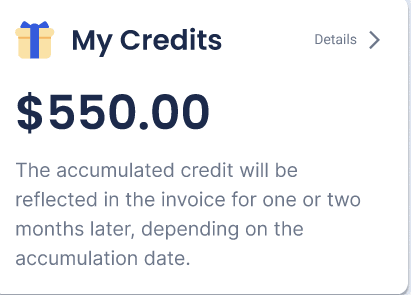
You can see the credits currently accumulated on the Home screen.
- This credit amount represents the amount currently accumulated but not used.
(5) My services
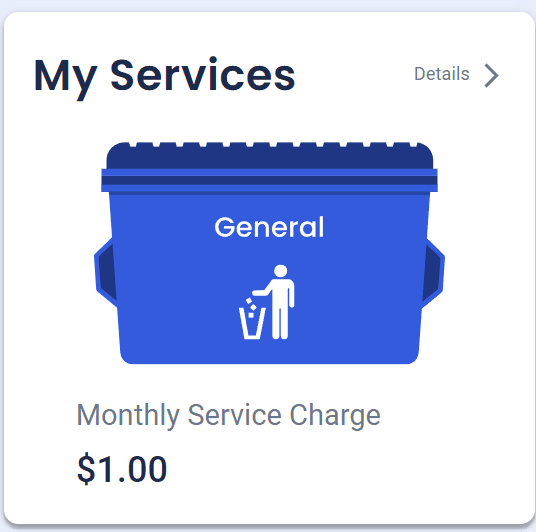
You can check your using dumpsters and service rate for each dumpster on the Home screen.
- If there are multiple dumpsters using at the site, the Previous and Later angle buttons will be displayed.
- If the previous button is pressed on the first screen, it moves to the last screen.
- If you press the subsequent button on the last screen, go to the first screen.
- Dumpster's Waste Type is displayed as an icon and text in the Dumpster image.
- The Monthly Service Charge shown under the Dumpster is the monthly charge for the Dumpster.
- You can move to My services page by clicking details button.
The functions provided on the Home screen so far are as above, and many functions will be added to the Home screen for user convenience in the future.