How do I set up Autopay on customer portal?
Do you want to register for automatic payment? You can easily register for automatic payment on Customer portal.
When you register for automatic payment, you no longer have to worry about whether your monthly bill has been paid or not.
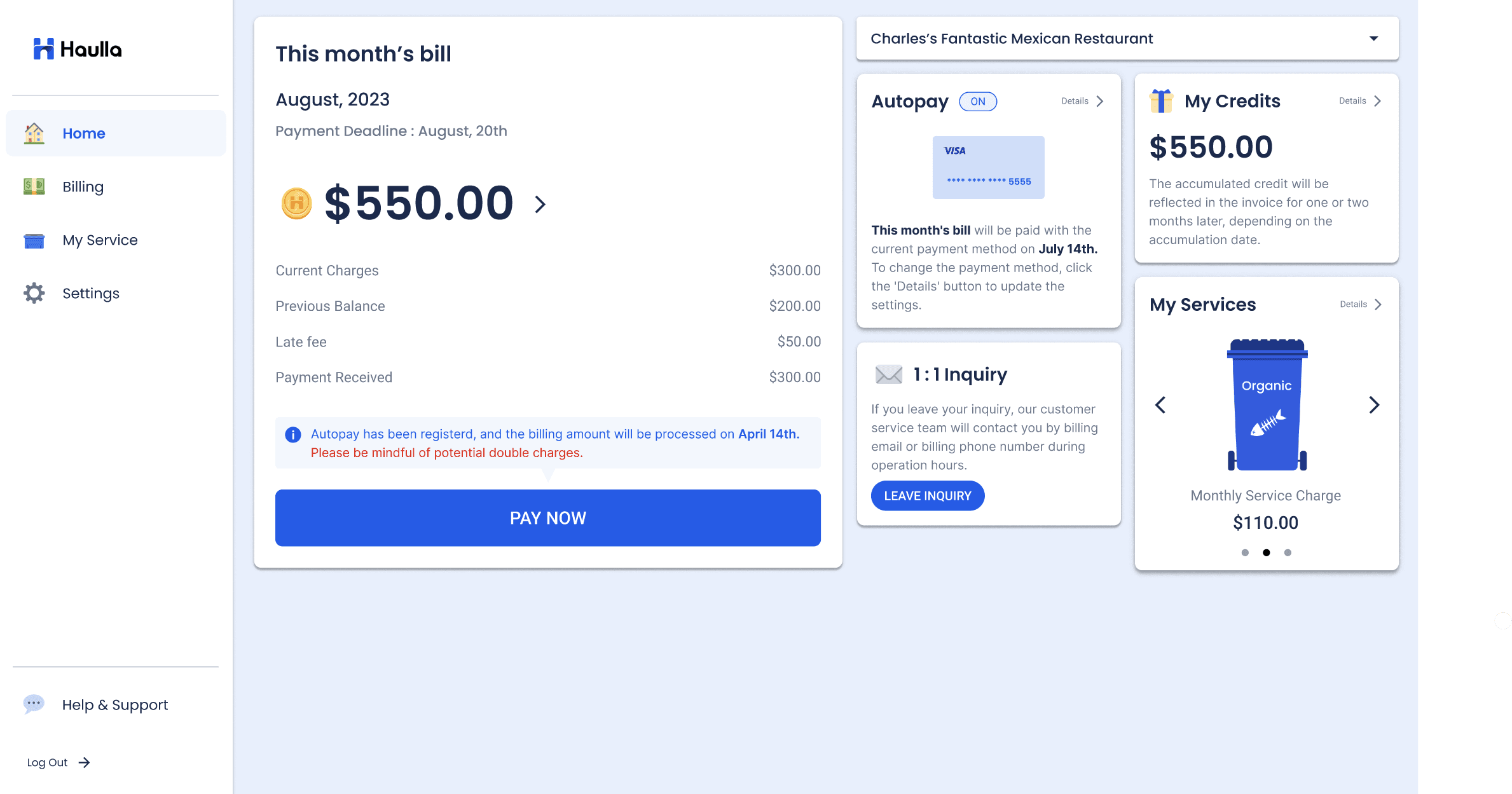
Click the Settings button or Details button on the Autopay container. (In this article, we will tell you how to register autopay through the setting screen.)
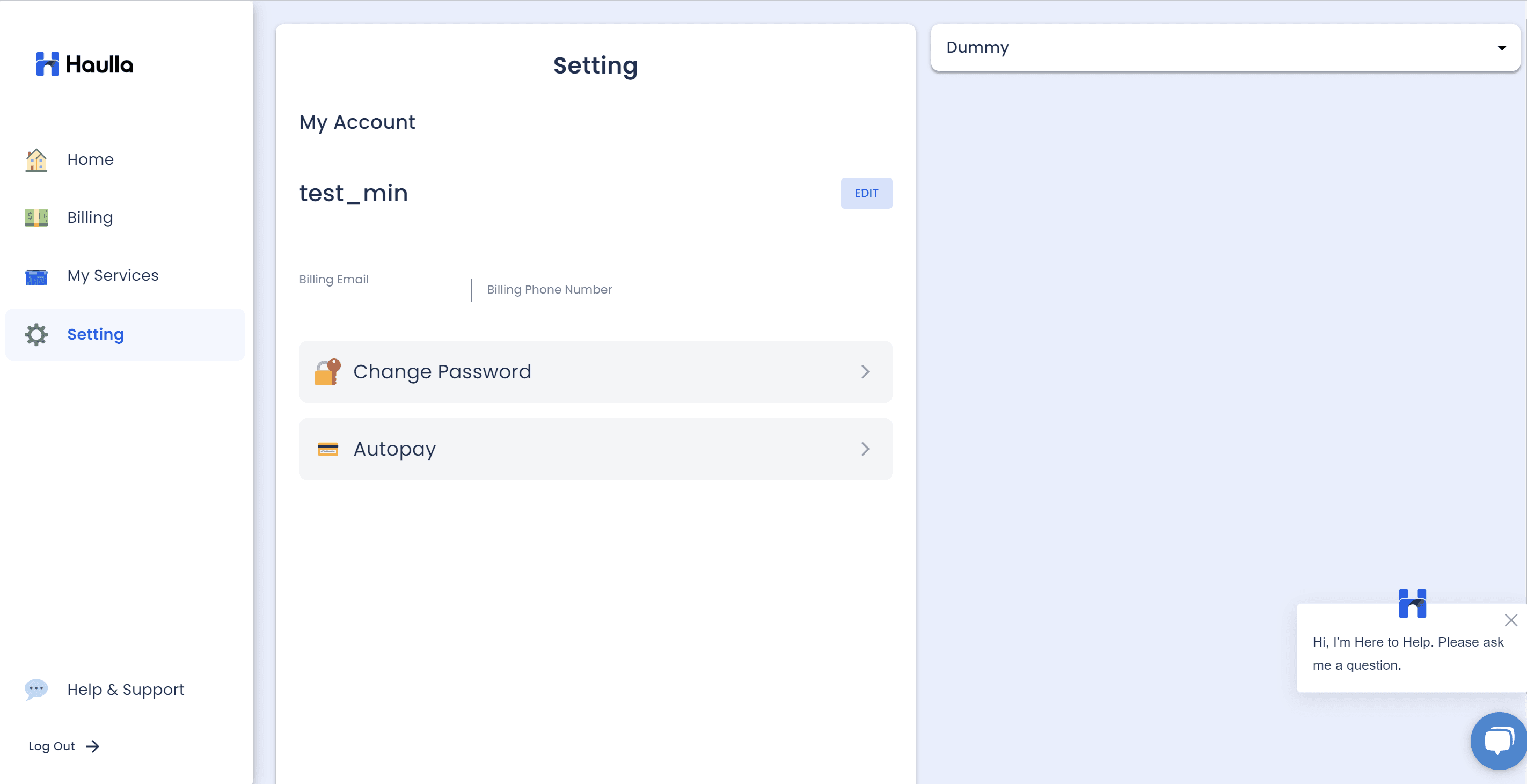
* On the Setting screen, you can edit your profile, change your password and manage your auto-payment. To set up autopay, please click Autopay button. You can then move on to the autopay screen.
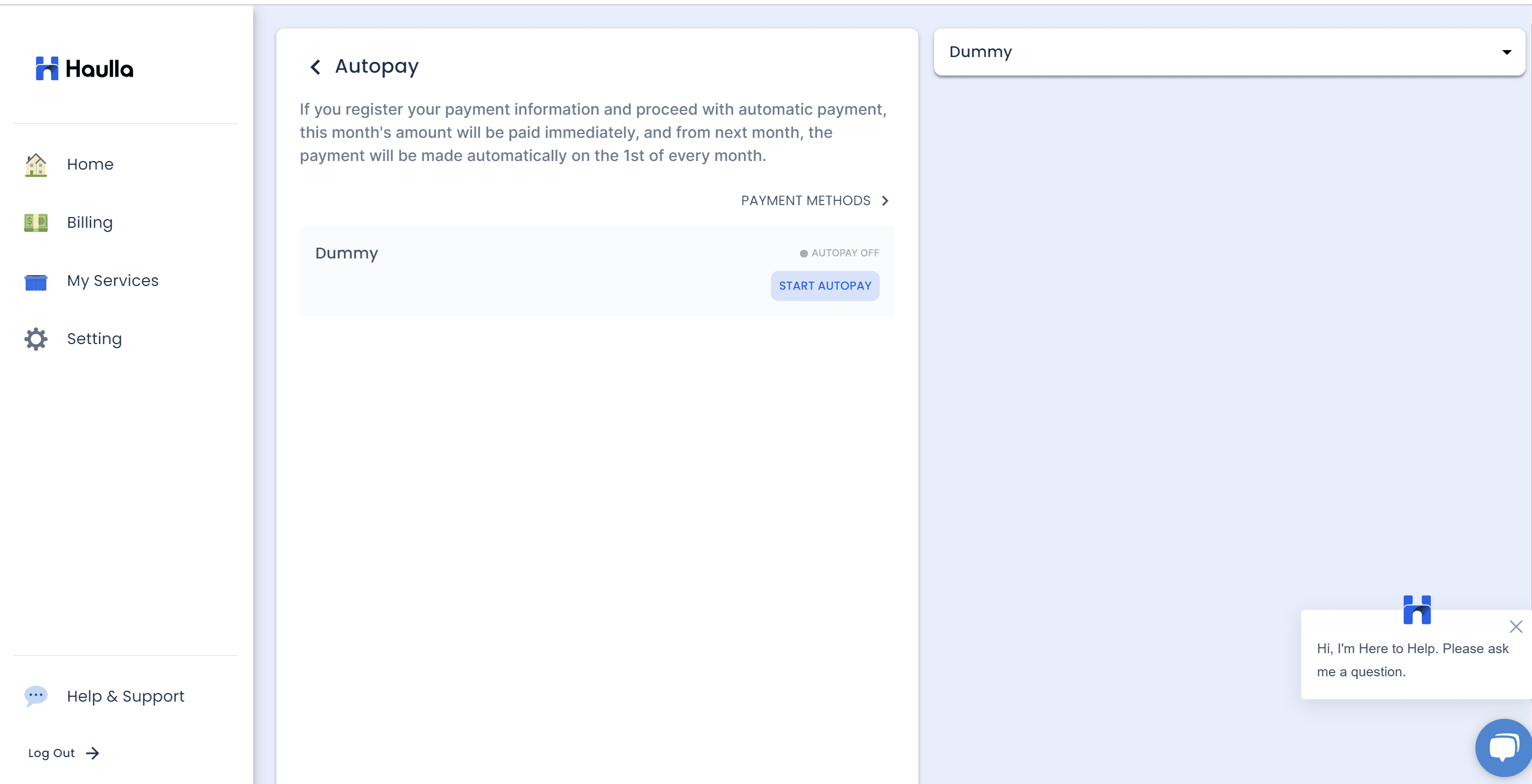
On the Autopay screen, you can see auto-payment status for all your businesses. You can set up your autopay by clicking the start autopay button of the business you want to register autopay.
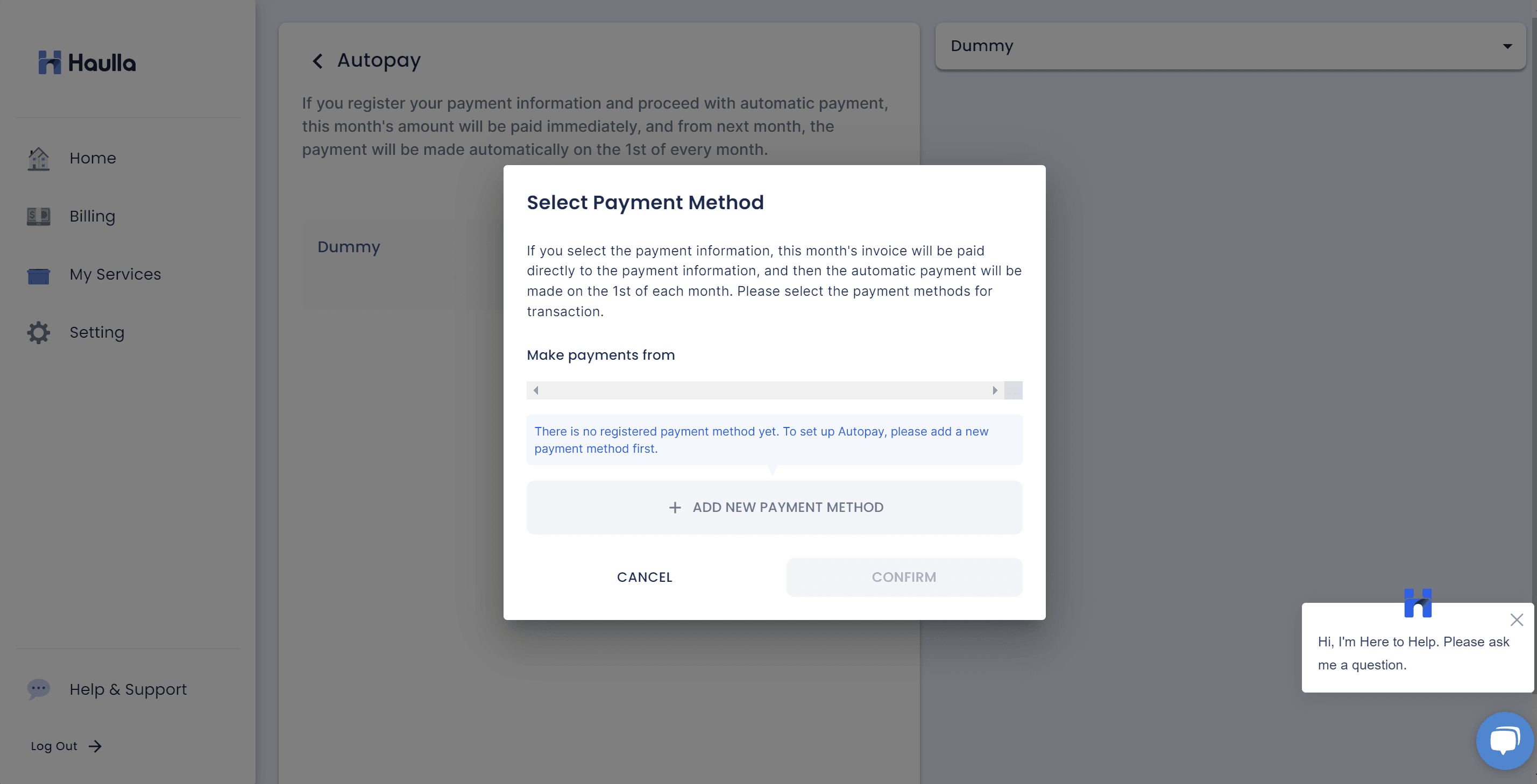
When you click start autopay button, the dialog for selecting payment method for your auto-payment will be shown. To register autopay, first you need to register your payment method.
- Click the ADD New Payment Method button
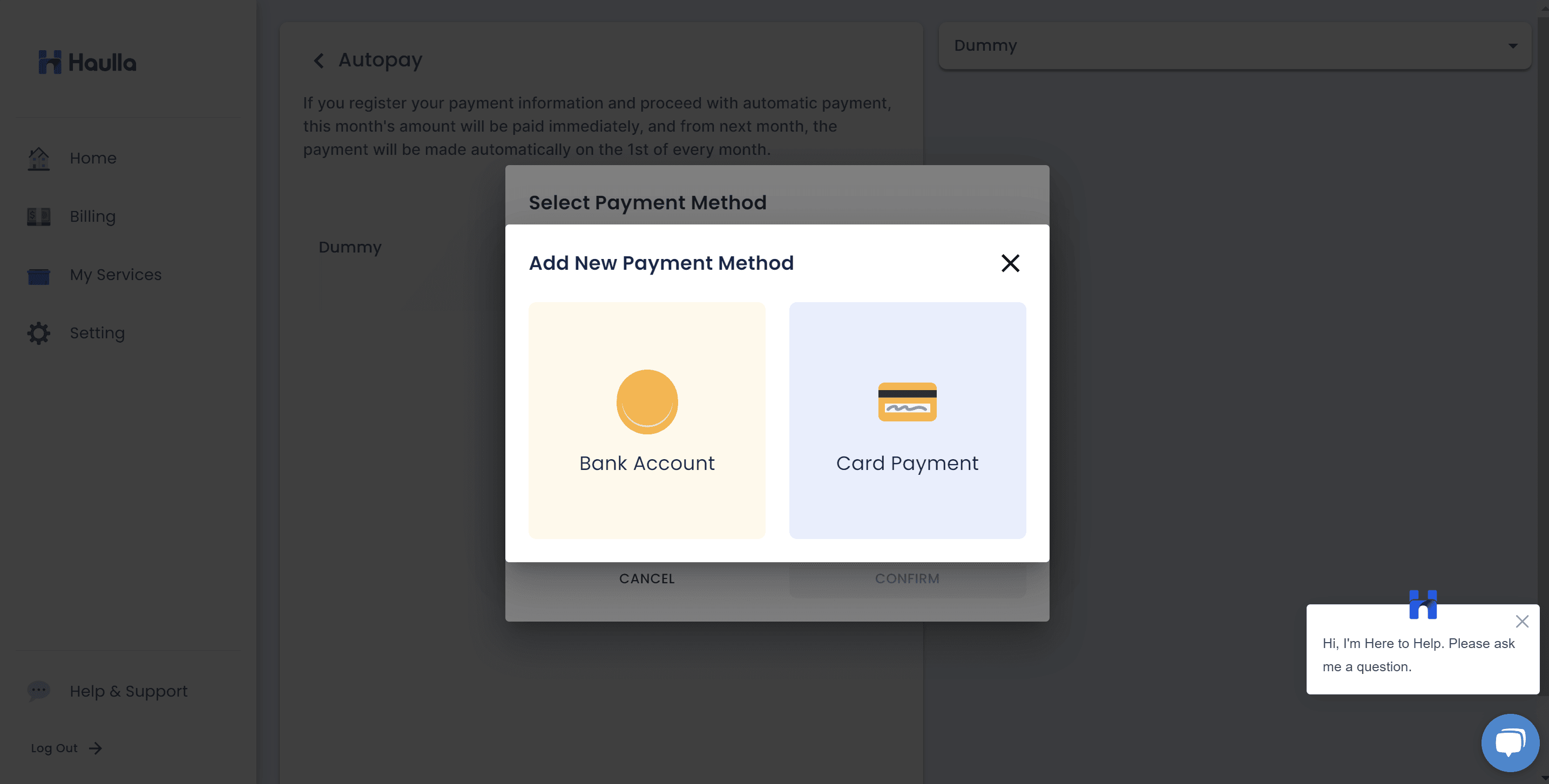
Clicking the add payment button will display the corresponding dialog.
- Select the payment method you want to register. If you want to register your card information, please click the Card Payment button. Or if you want to register your bank account, please click the bank account button
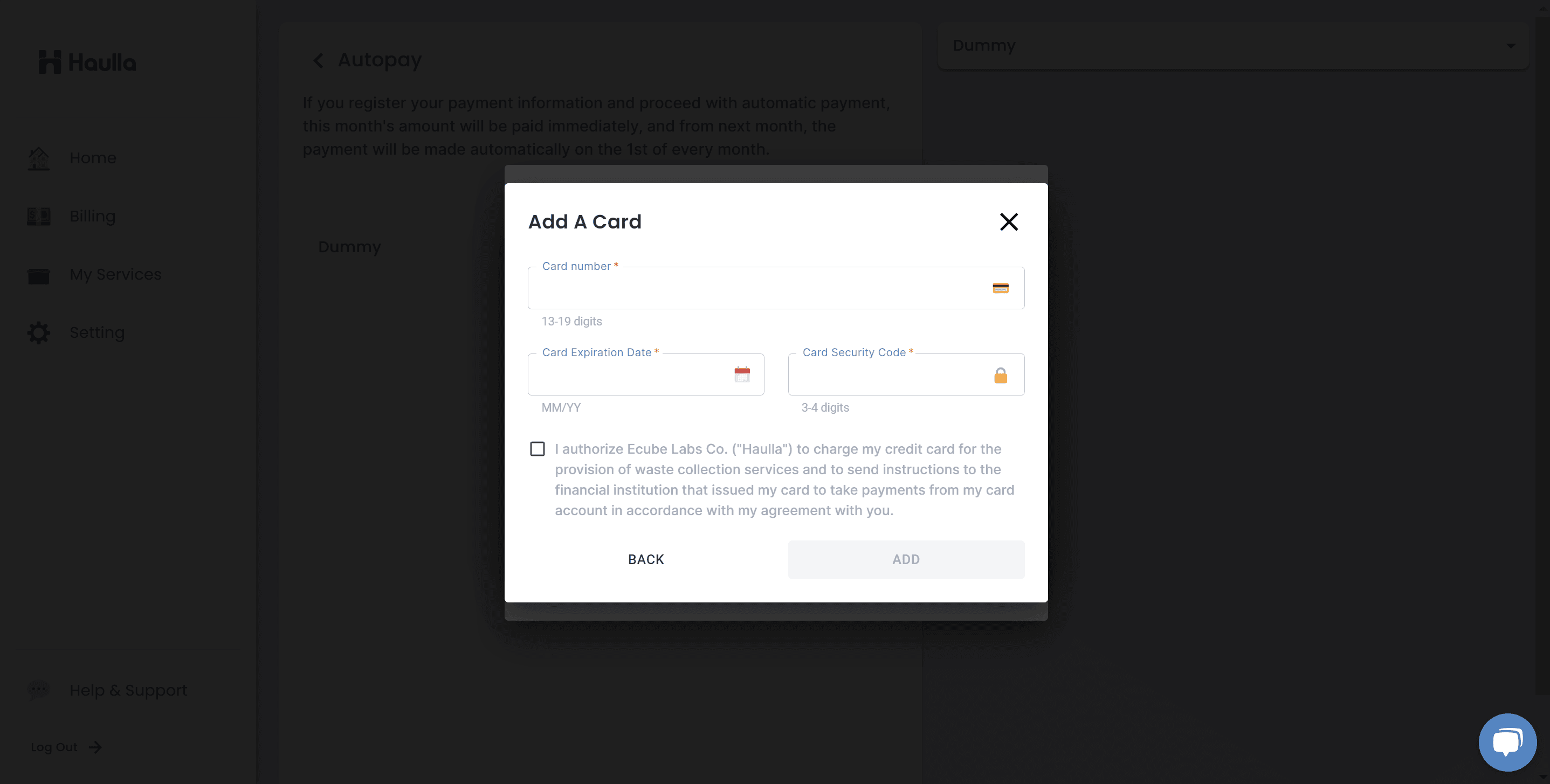
If you click card payment button, a dialog will be displayed to enter card information.
- Enter card information and check the checkbox about authentication.
- If you have not entered the required value or there is a problematic input value, you cannot click the Add button. The problematic input value is displayed in red, so please check and correct it.
- After that, click the ADD button to complete the payment method registration.
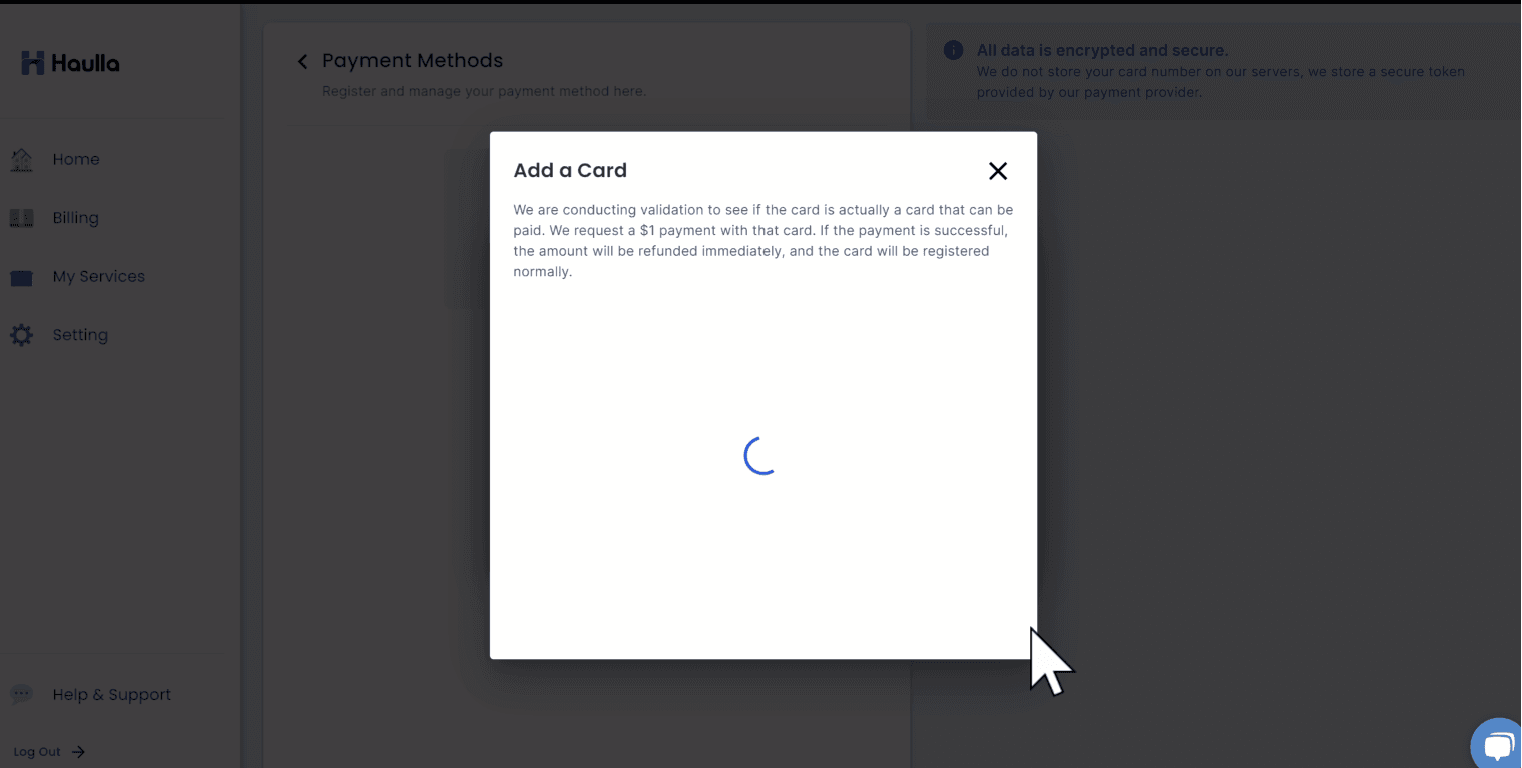
- When you press the 'Add' button, an immediate validation check is conducted on the card. A loading screen will be displayed during the validation process. Even if you close or navigate away from the loading screen, the processing for the requested card registration will continue.
- $1 payment is processed on the entered card, and if the payment is successful, the card is registered, and the $1 is refunded immediately.
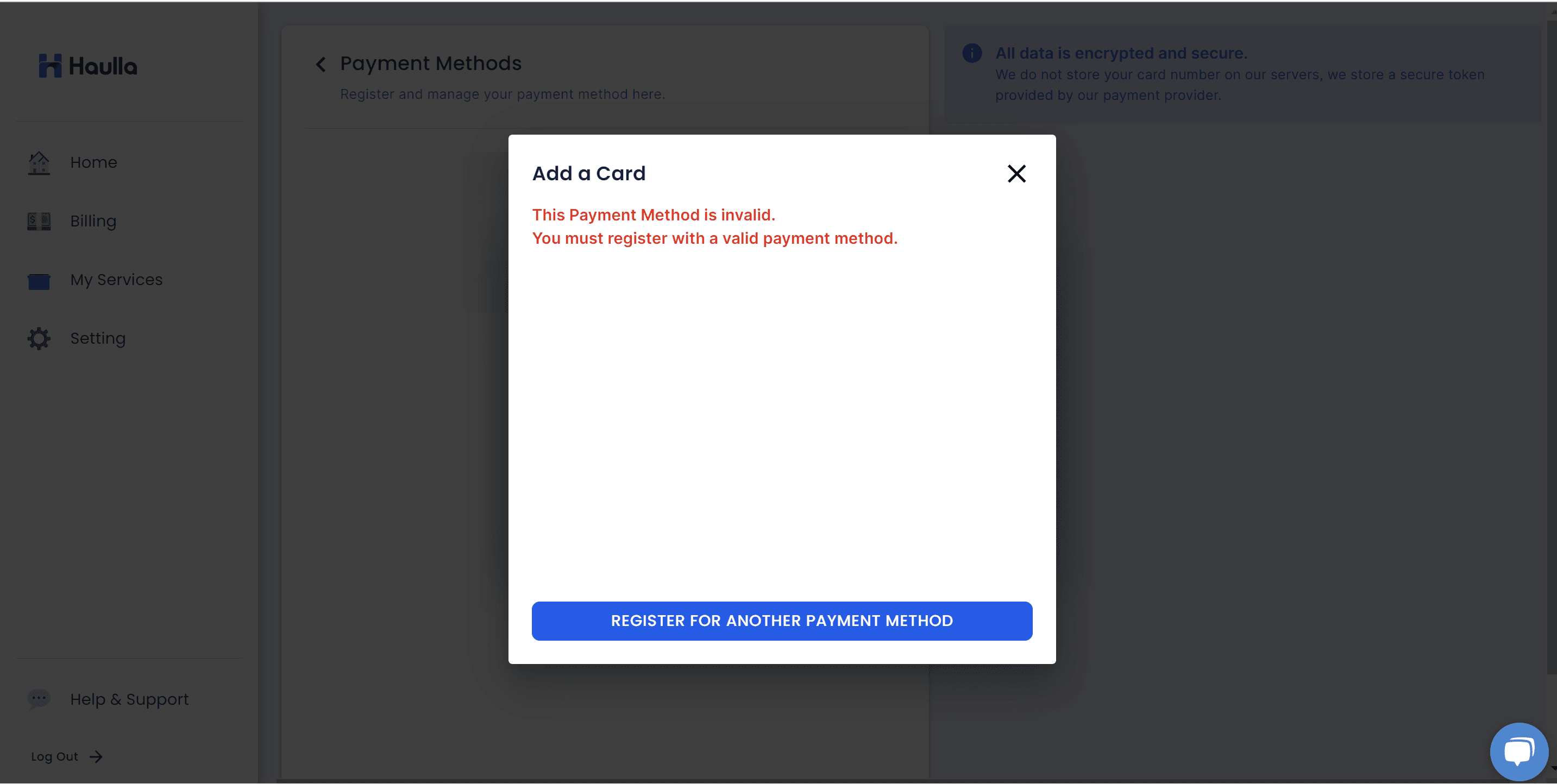
- If the payment request for $1 fails, the card is identified as invalid for payment, and registration is not possible.
- In such a case, please press the 'Register for another payment method' button to proceed with the card input process again.
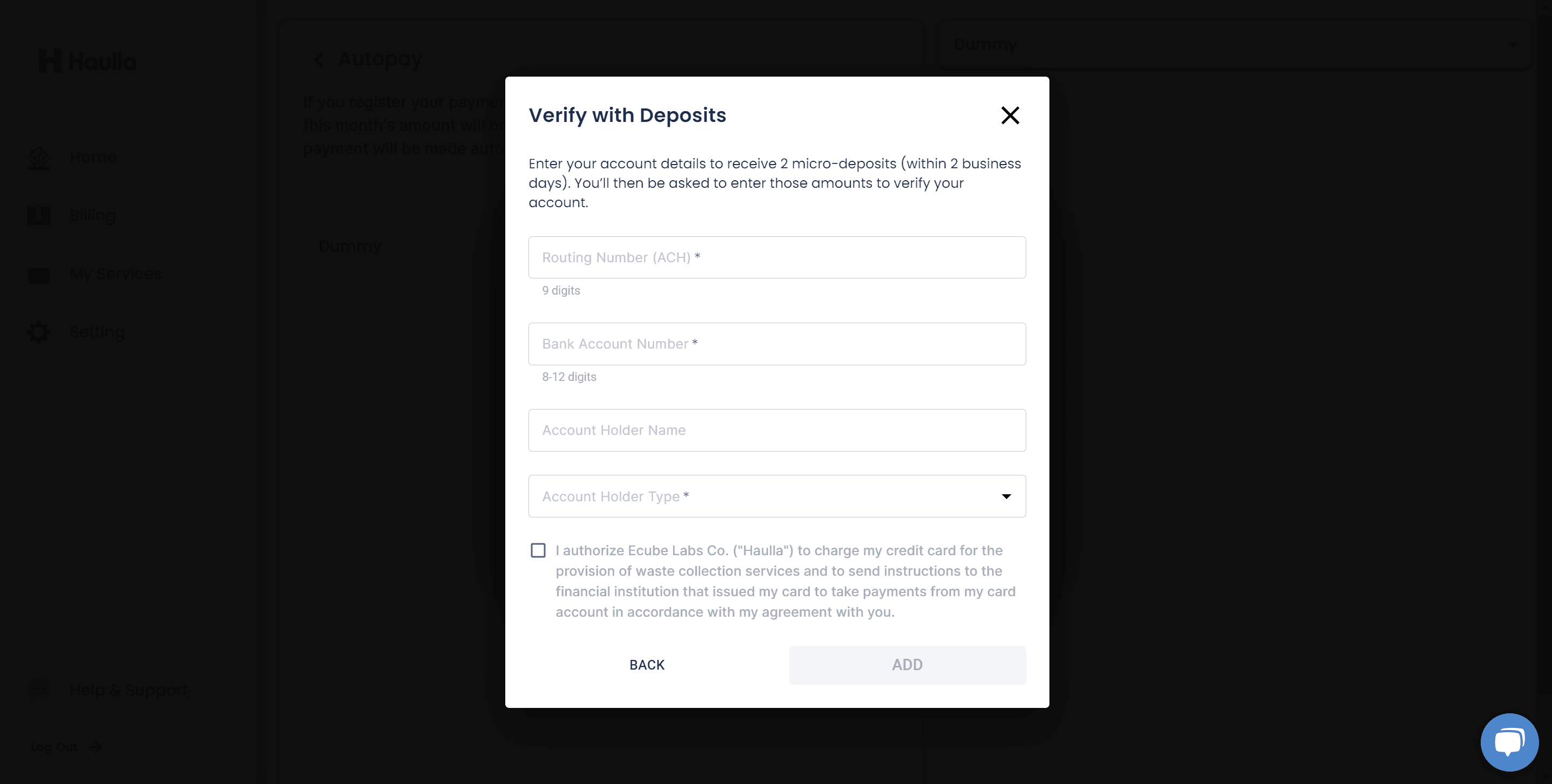
If you click bank payment button, a dialog will be displayed to enter bank information.
- Please enter all required input values in the dialog and click the checkbox asking if you agree.
- If you have not entered the required value or there is a problematic input value, you cannot click the Add button. The problematic input value is displayed in red, so please check and correct it.
- After that, click the ADD button to complete the payment method registration.
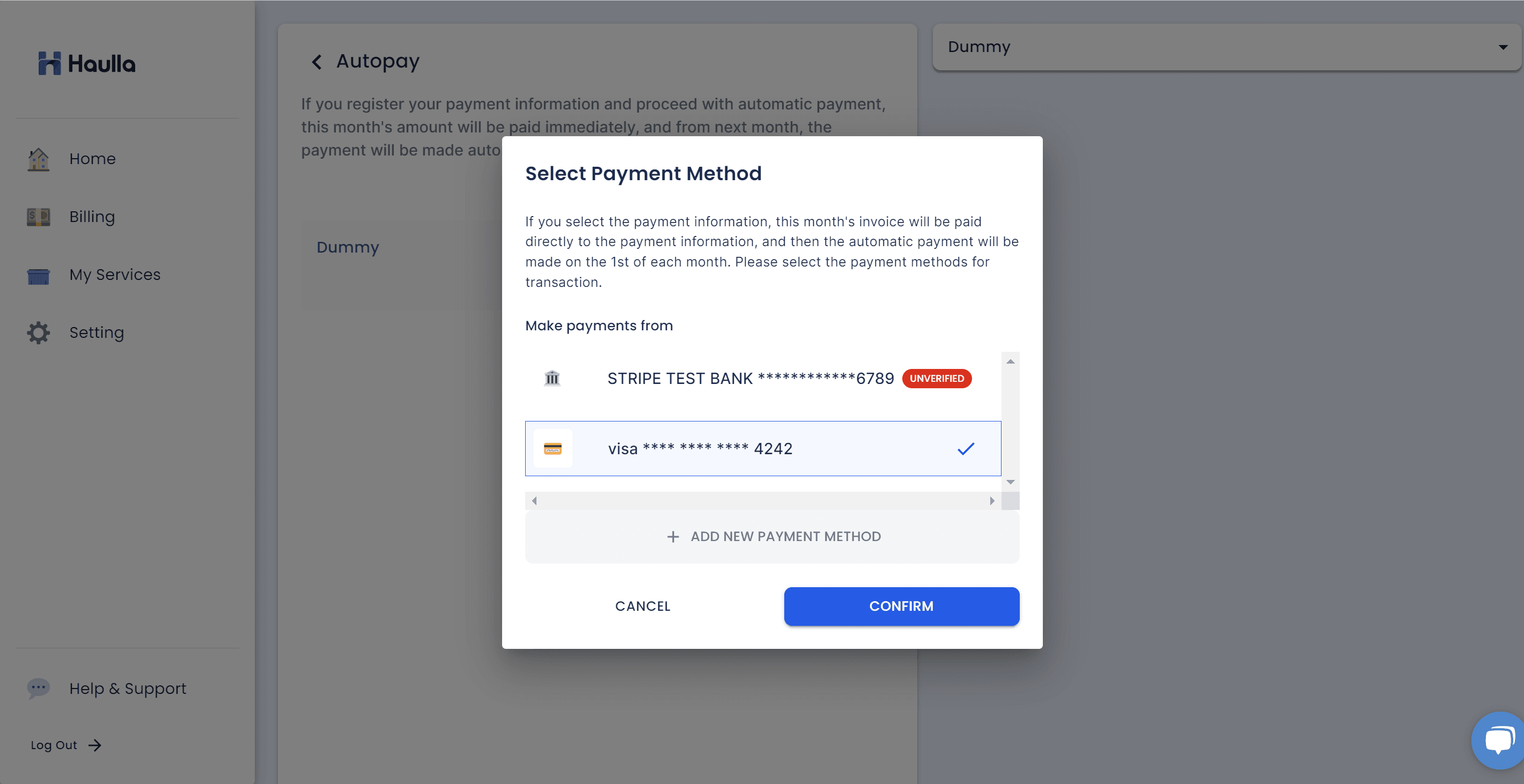
Once the payment information is successfully registered, the newly added payment information will be displayed in the payment information list on the screen. Just select the payment method that you want to register the auto-payment for the business.
- For bank accounts that require authentication through the deposit amount, the unverified status is displayed next to the account. You cannot register the unverified payment method for your autopay. If you want to register unverified payment method for your autopay, you need to verify it first.
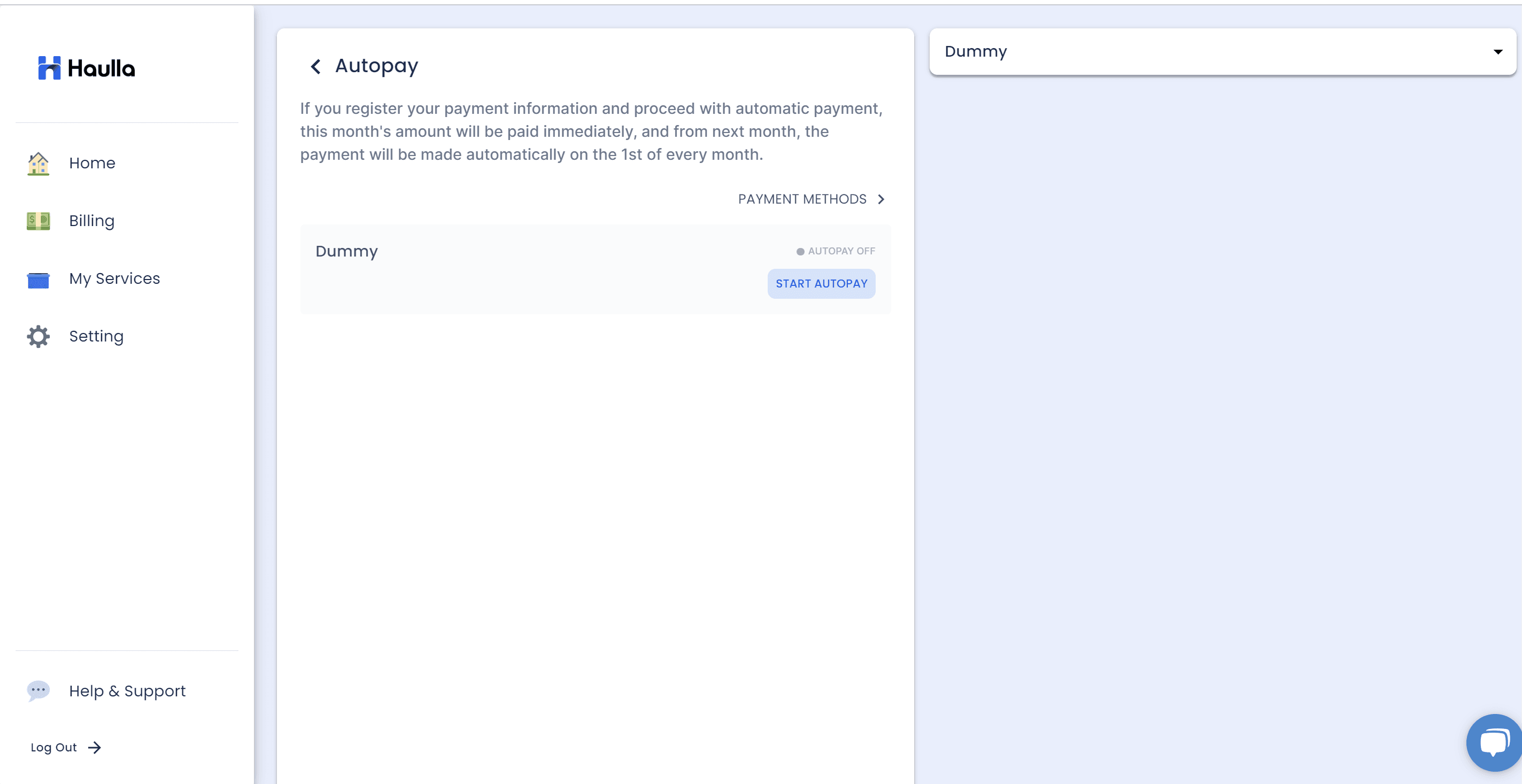
If you want to change the account information in the unverified state to the authentication completed state, you need to process the verification.
- Click Payment Methods button to move on to the screen where you can manage your registered payment methods.
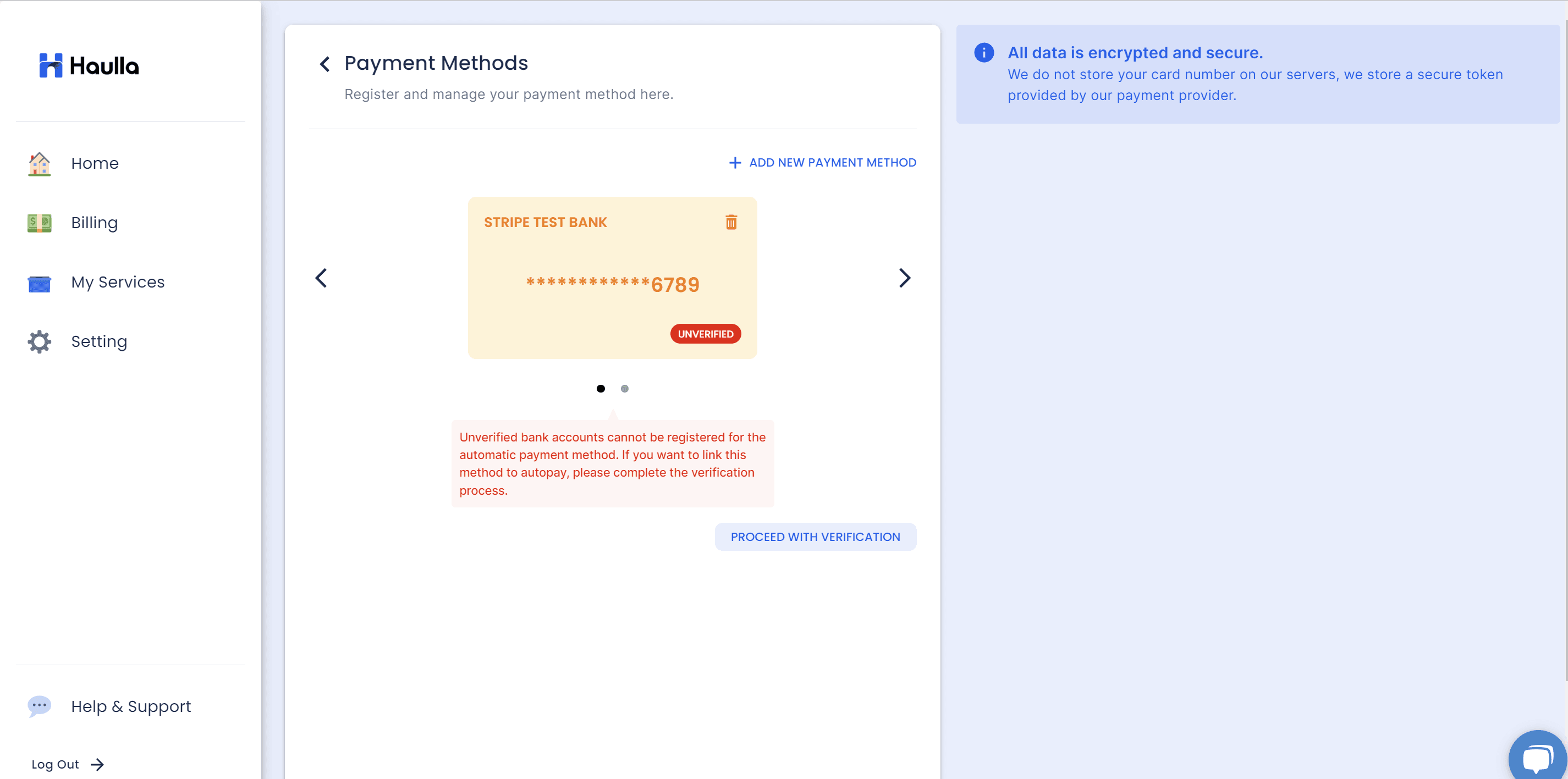
You can check all the registered payment methods on the Payment Methods screen. The unverified payment method will be shown like this. Please click proceed with verification button.
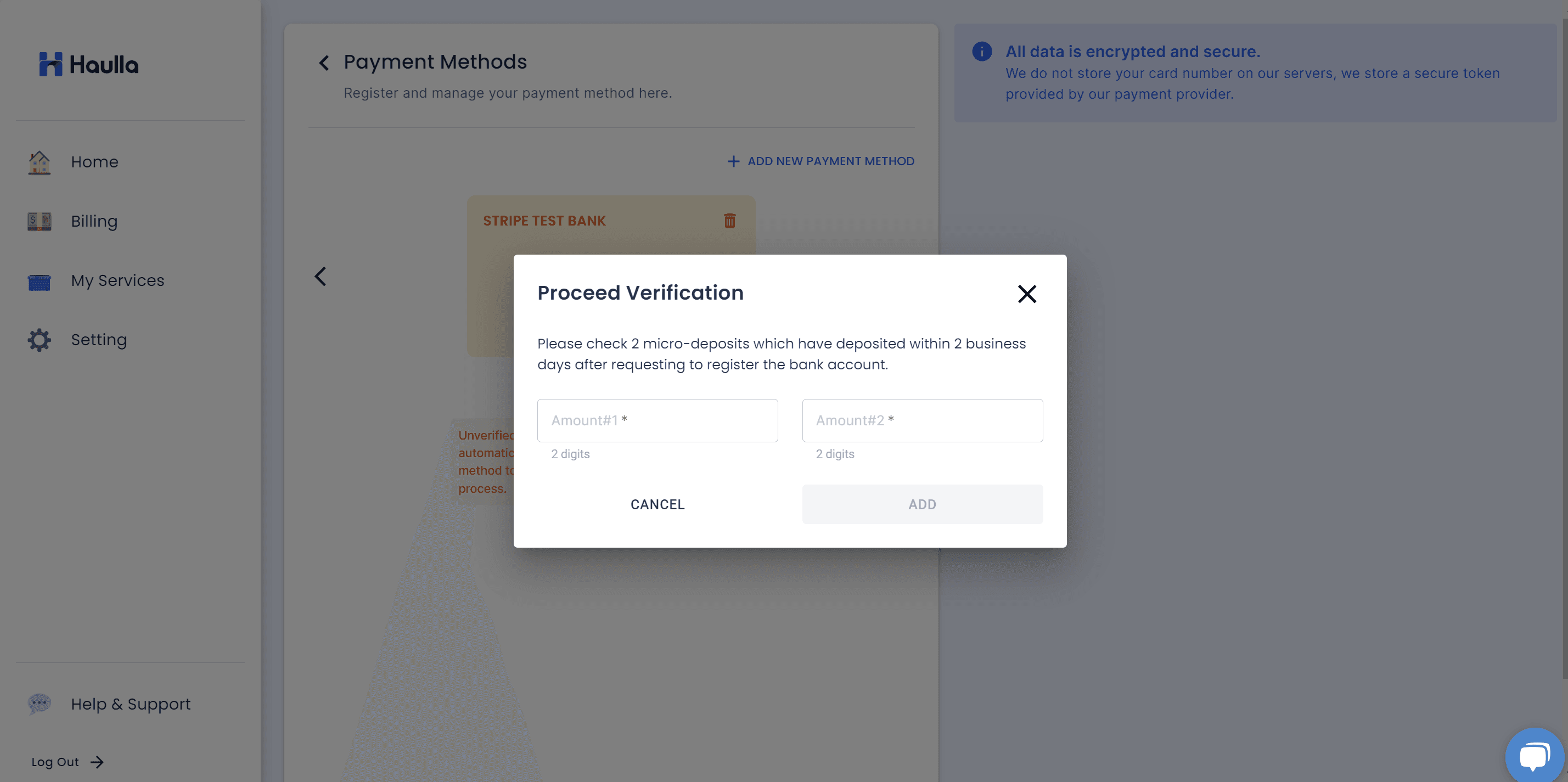
For account information registered through the verify with deposit method, micro-deposit will be remitted to the account after 2 days of registration. Please check the deposited amount and proceed verification.
- Enter the deposition information that matches the input value and click the Add button
- If the deposit amount not matches, error message will be shown.
- If the verification process proceeds normally, the unverified status mark that was displayed next to the payment information disappears. You can now register it normally with your autopay.
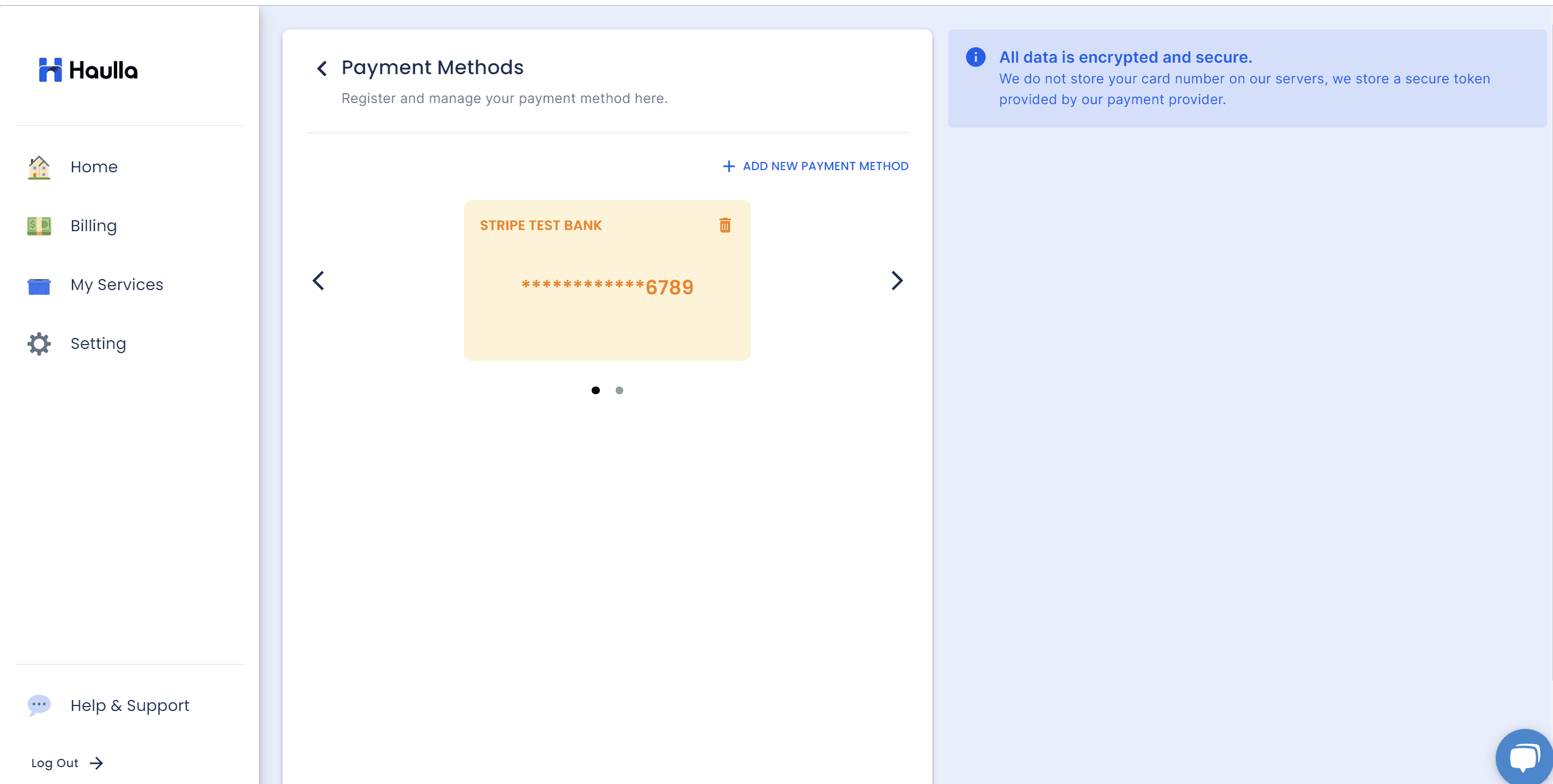
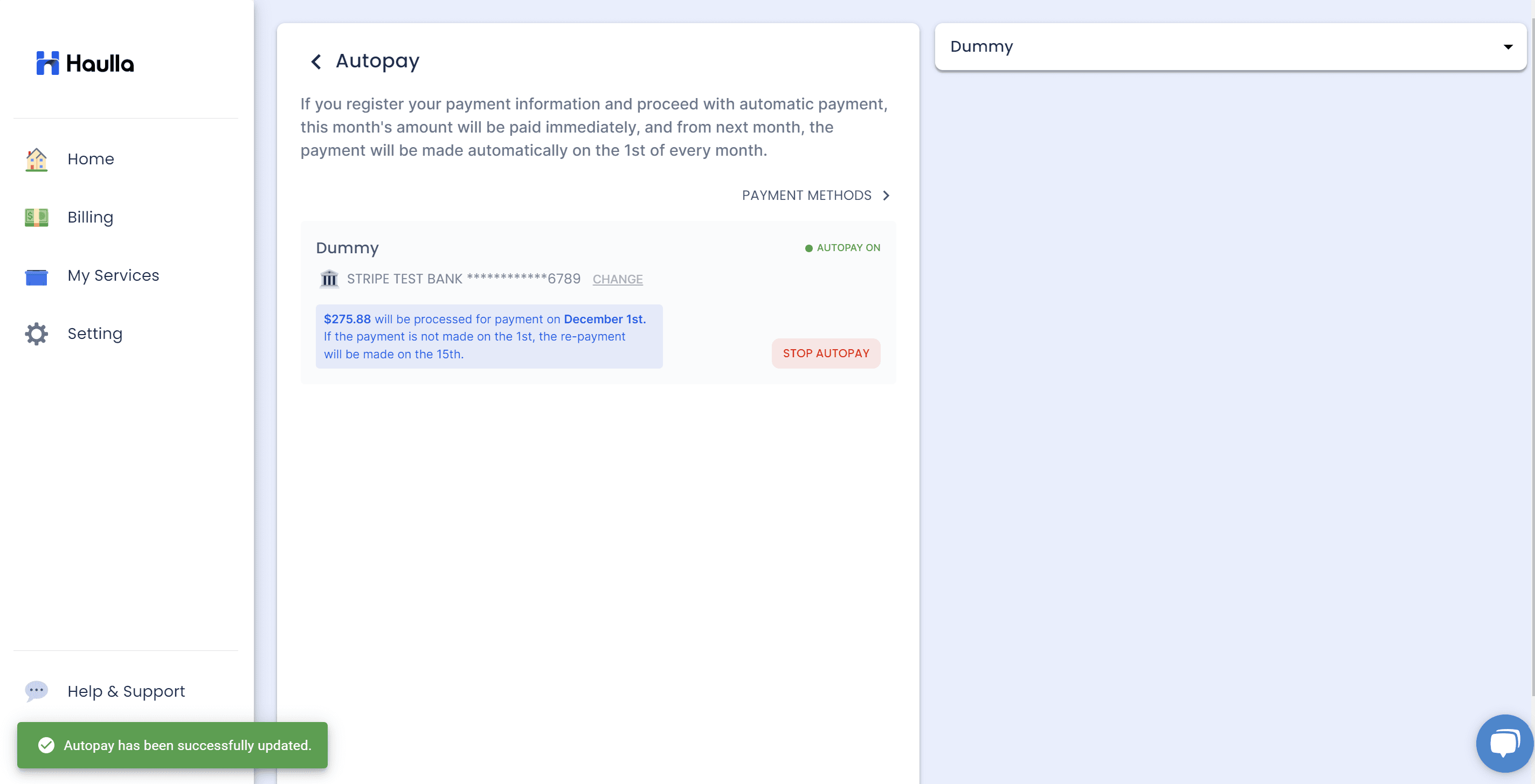
If autopay is normally registered in business, the autopay progress guide will be displayed as shown on the corresponding image.
The current month's invoice will be immediately processed for payment when you press the confirm button, and starting from the next month, Autopay transactions will take place on the 1st of every month. If Autopay fails to successfully process on the 1st, a retry may be initiated on the 15th.